This article explains how to set up TRAKTOR for the use of an external MIDI controller.
TABLE OF CONTENTS
- Adding a Mapping for Your Controller
- Creating a Generic MIDI Mapping
- Importing an Existing MIDI Mapping
Adding a Mapping for Your Controller
In order for your controller to interact with the TRAKTOR software interface, you need to add a MIDI mapping (Device) to TRAKTOR's Controller Manager. You can either create your own MIDI mapping or you can import an already existing mapping file. Both methods are explained below. When adding your mapping to the Controller Manager, make sure to only add one mapping for your controller. Accidentally created duplicates can create various issues and may cause the controller to not work correctly. If you are managing a more complex controller setup that relies on several different mappings, make sure the In-Ports and Out-Ports are set correctly in order to avoid problems with the MIDI routing.
Note: When you launch TRAKTOR for the first time after having installed the software (or a software update), the Setup Wizard for configuring TRAKTOR will be launched automatically. If your controller is not a TRAKTOR READY controller, select No when prompted Are you using an external controller? and continue with Next. This field is reserved for setting up specific TRAKTOR READY controller models only. After finishing the Setup Wizard, proceed with the instructions in this article.
Creating a Generic MIDI Mapping
- Connect your controller and power it up.
- Launch TRAKTOR.
- Open the Preferences menu and go to Controller Manager.
- Click on the Add... button underneath the Device field and select Generic MIDI.
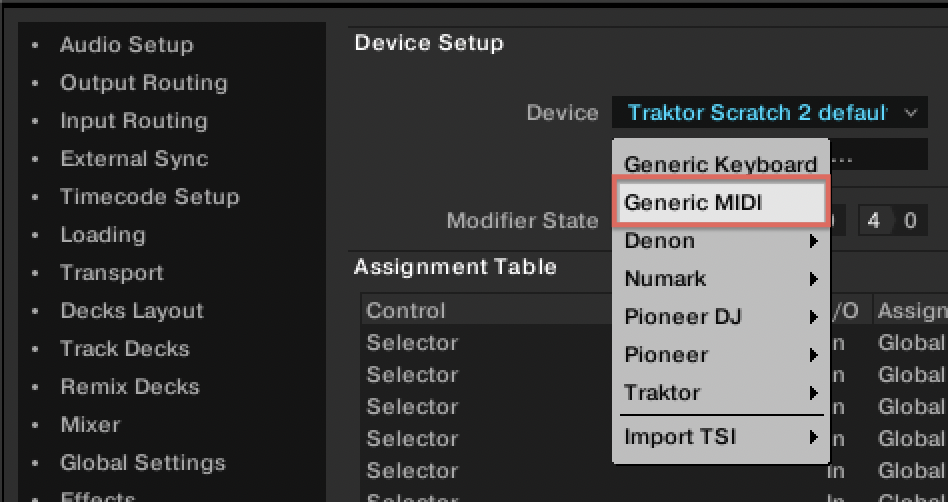
- This will create an empty MIDI mapping named Generic MIDI. Its name will appear in the Device field.
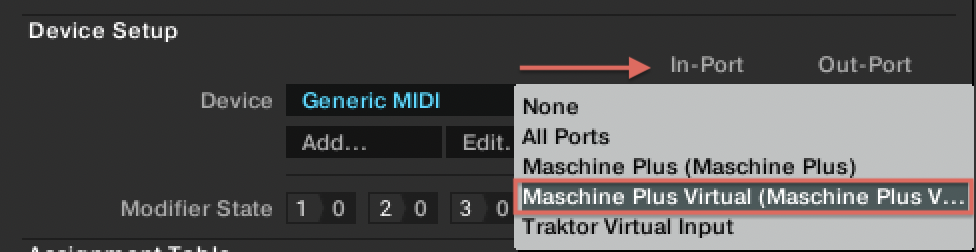
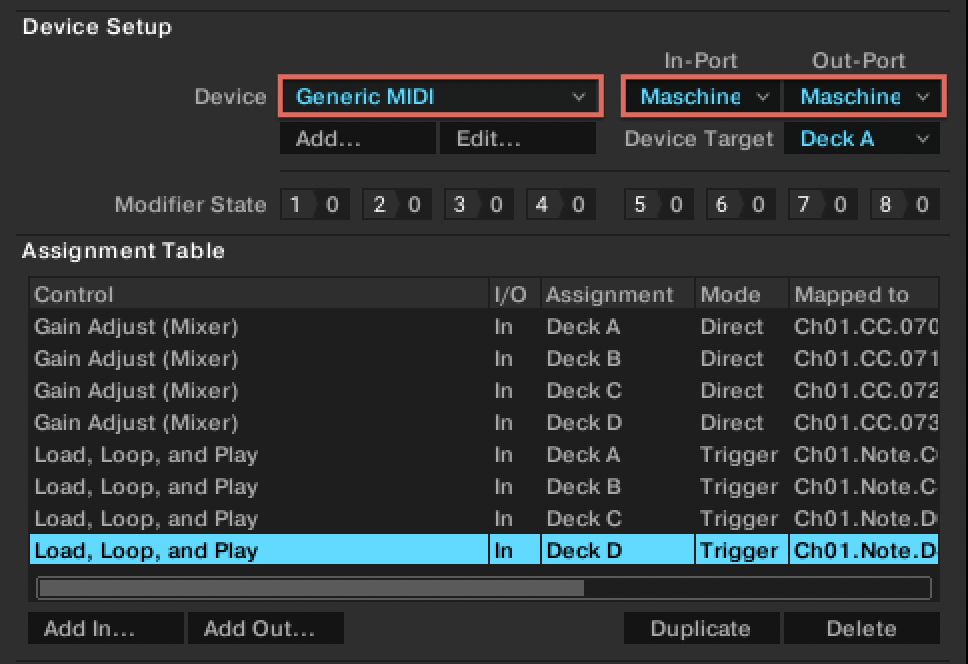
- Set the values for In-Port and Out-Port to the corresponding MIDI port name of your controller. In this example, we are using the MASCHINE+ in MIDI mode, so we are selecting the Maschine Plus Virtual entry.
- You are now ready to create your mapping. This article provides an in-depth explanation of creating and editing MIDI mappings in TRAKTOR.
Importing an Existing MIDI Mapping
All MIDI mappings created in the Controller Manager can be exported to a local hard drive as separate TRAKTOR setting files via the Edit... > Exportoption. These files can then be freely shared among different users and systems.
These files have the extension ".tsi". Some manufacturers and user communities provide controller mapping files for a variety of third-party MIDI controllers. Many of them are available for download on the Internet. In order to import an existing mapping file, proceed as follows:
- Connect your controller and power it up.
- Launch TRAKTOR
- Click on the Add... button underneath the Device field and select Import TSI. Some devices are already pre-mapped in TRAKTOR, but if your device is not present, select Import Other...
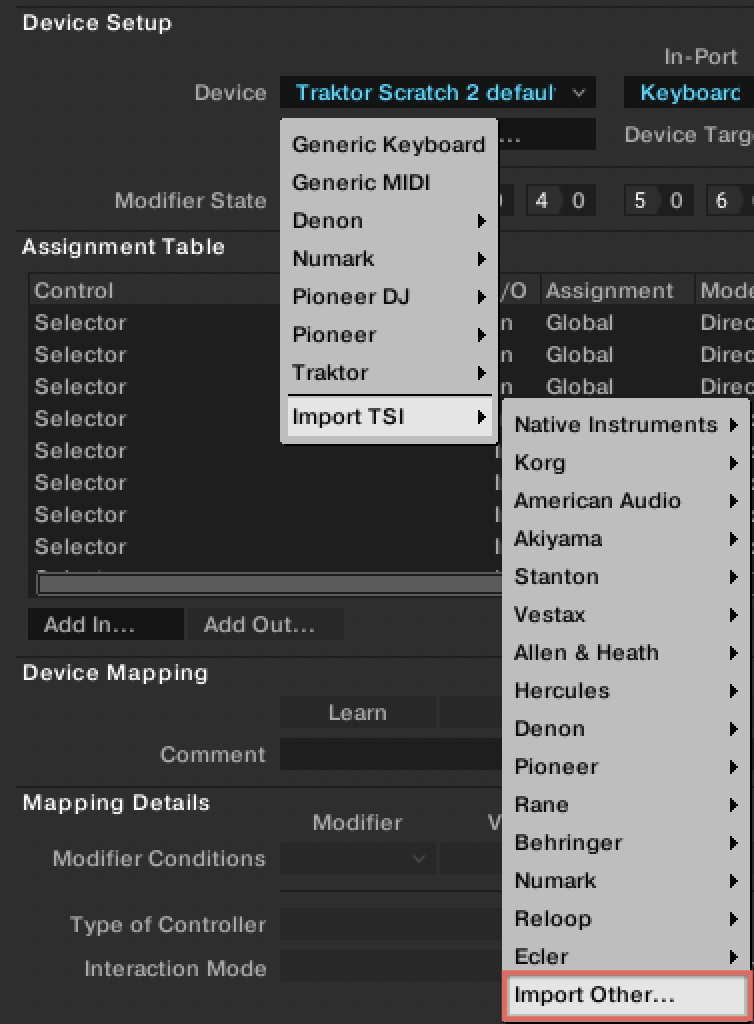
- In the pop-up window, navigate to the location of your .tsi mapping file, highlight it and confirm with the Open button.
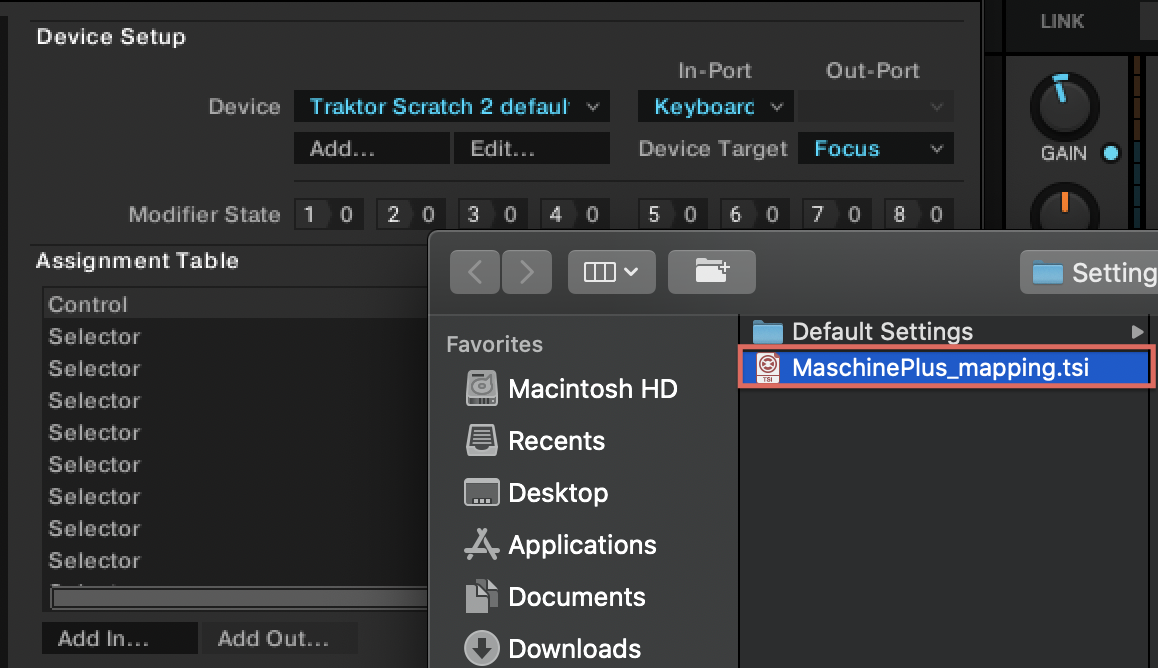
- This will import the MIDI mapping with all its customized commands shown in the Assignment Table.
- Choose the corresponding ports for the currently selected mapping under In-Port and Out-Port. Now your controller is ready to use.
Was this article helpful?
That’s Great!
Thank you for your feedback
Sorry! We couldn't be helpful
Thank you for your feedback
Feedback sent
We appreciate your effort and will try to fix the article