How to Record a Mix in TRAKTOR Using an External Mixer and the AUDIO 8 DJ
In order to record your mix using the Audio Recorder in TRAKTOR while using External Mixer Mode, please do the following:
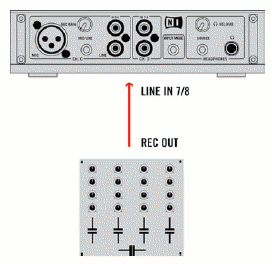
- Connect the recording output (REC OUT) of your external mixer to Input 7/8 (Channel D) of the AUDIO 8 DJ.
- Make sure the AUDIO 8 DJ is selected as your Audio Device in TRAKTOR's Preferences > Audio Setup.
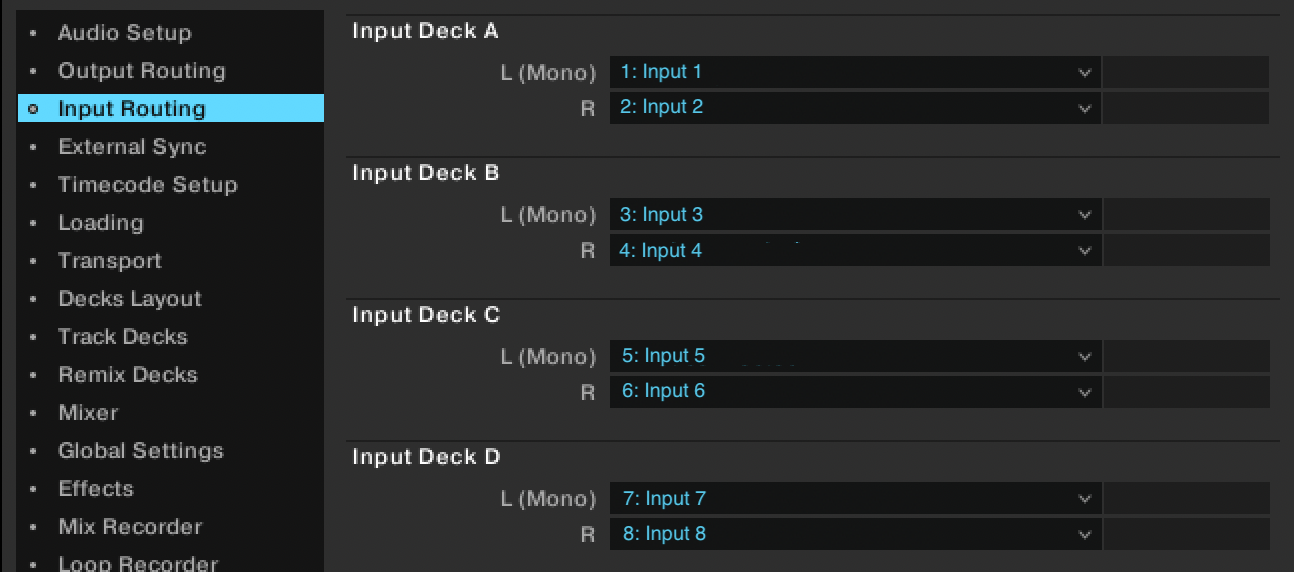
- Go to Preferences > Input Routing and Set Input Channel D to Input 7 and Input 8.
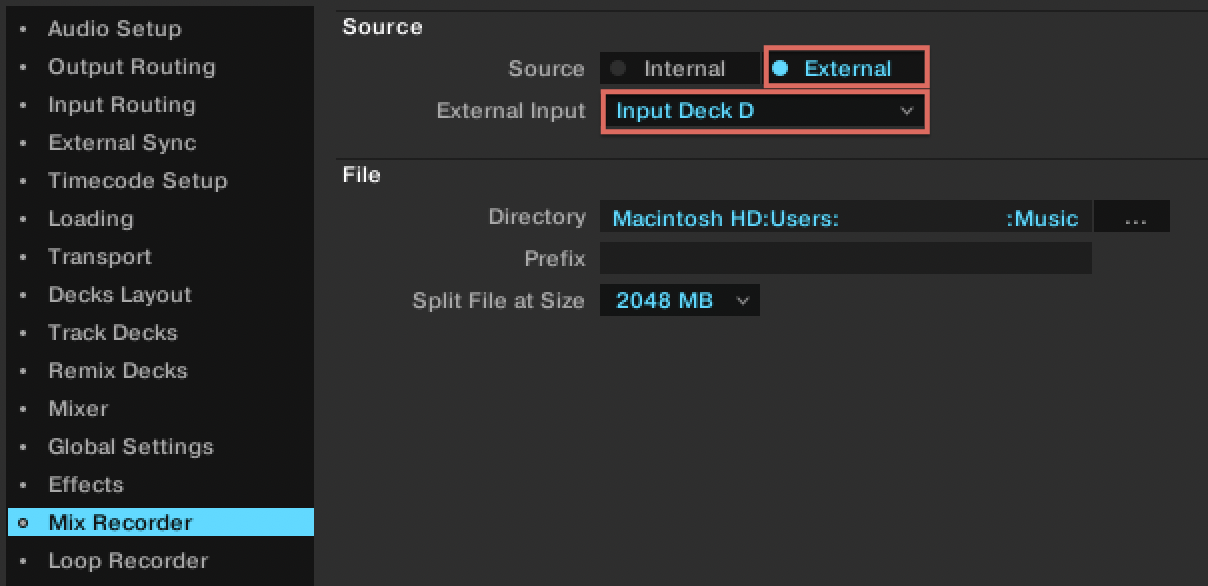
- In the Preferences > Mix Recorder, set your Source to External and External Input to Input Deck D. Then, close the Preferences.
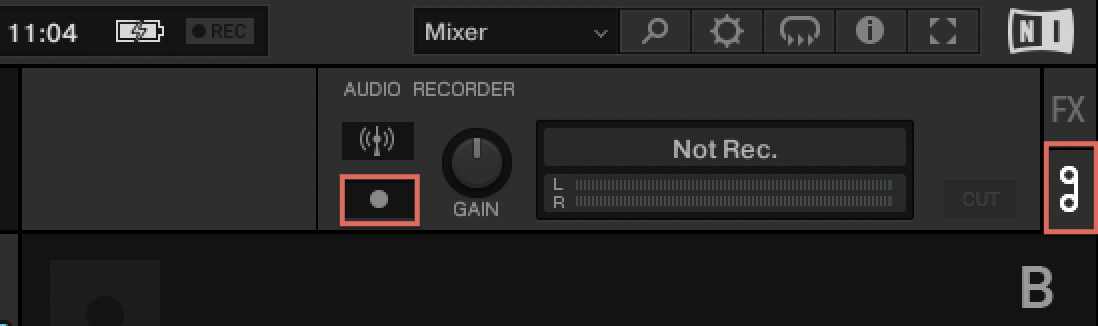
- Open the Audio Recorder Panel in TRAKTOR's Global Section by clicking on the cassette symbol.
- Start the recording by clicking on the Record [•] button. To stop the recording and save the audio file, click the Record [•] button again.
The recorded files will appear in the Audio Recordings folder of your TRAKTOR Browser and are saved in the following default folder on your hard drive:
- macOS: Users > *your username* > Music > Traktor > Recordings
- Windows: Users > *your username* > Music > Traktor > Recordings
You can change this path in the Mix Recorder panel in the TRAKTOR Preferences.
Was this article helpful?
That’s Great!
Thank you for your feedback
Sorry! We couldn't be helpful
Thank you for your feedback
Feedback sent
We appreciate your effort and will try to fix the article