The MASCHINE MK3 includes a built-in audio interface with specific input and output behaviors. This guide outlines key limitations and how to manage audio outputs.
TABLE OF CONTENTS
- Notes on MASCHINE MK3's Audio Inputs
- Notes on MASCHINE MK3's Audio Outputs
- Switching System Audio Output between Line Out and Headphones on Mac
- Switching System Audio Output between Line Out and Headphones on Windows 10
- Switching System Audio Output between Line Out and Headphones on older Windows Systems
Notes on MASCHINE MK3's Audio Inputs
The MASCHINE MK3's audio interface's Mic in and Line inputs cannot be used simultaneously. When you connect a microphone, the Line inputs are automatically turned off. As soon as you unplug the microphone, the Line inputs will work again.
Notes on MASCHINE MK3's Audio Outputs
To learn about the MASCHINE MK3's audio configuration, please refer to the MASCHINE MK3 'Getting Started Guide'. You can download the guide and the MASCHINE MK3's manual from our product page.
Switching System Audio Output between Line Out and Headphones on Mac
1. Open Finder and navigate to Mac HD > Applications > Utilities.
2. Open Audio MIDI Setup.
3. Choose Maschine MK3 on the left, select Output and click the button Configure Speakers.
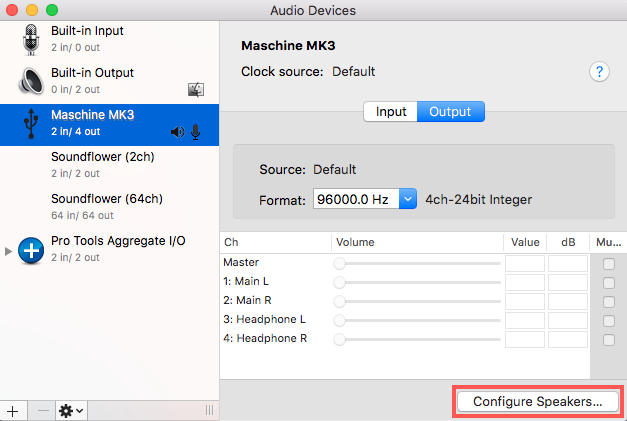
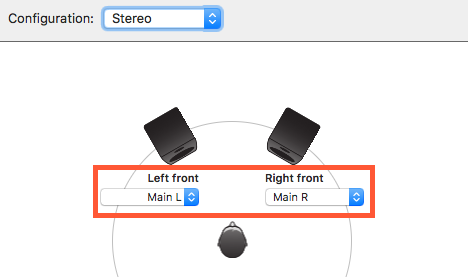
4. Choose the corresponding ports, depending on whether you want to listen via line out or via headphones:
- If you want to listen via line out, choose Main L for Left front and Main R for Right front. Then click Apply.
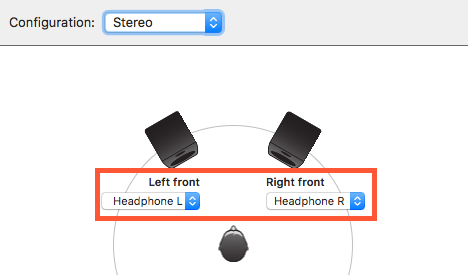
- If you want to listen via headphones, choose Headphone L for Left front and Headphone R for Right front. Then click Apply.
Please note that on Mac OSX 10.11 El Capitan, the available outputs are named differently. Please use:
- M1 (left front) and M2 (right front) for line out
- M3 (left front) and M4 (right front) for headphones
Switching System Audio Output between Line Out and Headphones on Windows 10
1. On the taskbar in the bottom right of your screen, click the speaker symbol, then the arrow symbol: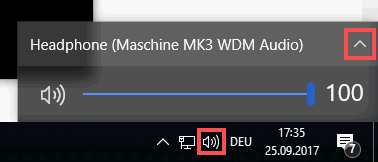
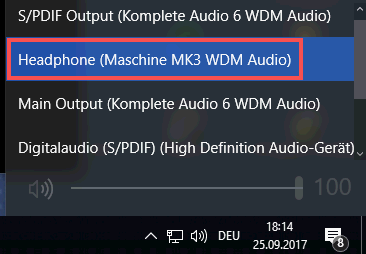
2. Choose the corresponding port, depending on whether you want to listen via line out or via headphones:
- If you want to listen via line out, choose Main (Maschine MK3 WDM Audio):
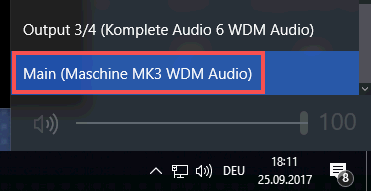
- If you want to listen via headphones, choose Headphone(Maschine MK3 WDM Audio):
Switching System Audio Output between Line Out and Headphones on older Windows Systems
1. Open Control Panel and choose Sound.
2. Choose the corresponding port, depending on whether you want to listen via line out or via headphones:
- If you want to listen via line out, choose Main (Maschine MK3 WDM Audio) and click the button Set Default.
- If you want to listen via headphones, choose Headphone(Maschine MK3 WDM Audio) and click the button Set Default.
Was this article helpful?
That’s Great!
Thank you for your feedback
Sorry! We couldn't be helpful
Thank you for your feedback
Feedback sent
We appreciate your effort and will try to fix the article