How to Route MASCHINE 2's Audio Output as a Live Input Source in TRAKTOR
TABLE OF CONTENTS
When you configure MASCHINE 2 to work along with TRAKTOR in Internal Mixing Mode, it is useful to route the output of MASCHINE 2 into a TRAKTOR Deck. This way you can apply TRAKTOR's effects to your MASCHINE 2 sounds and record your entire performance including MASCHINE 2 with TRAKTOR's Mix Recorder.
Note that in order to accomplish this setup, you need to route the output of MASCHINE 2 from an additional audio interface into a free input of the audio interface you are using in TRAKTOR.
In this example, we will be using KOMPLETE AUDIO 6 as the MASCHINE 2 audio interface and TRAKTOR KONTROL S4 as the TRAKTOR audio interface.
Note: You may find it practical to use your built-in computer soundcard to output the sound of MASCHINE 2 into an input of your TRAKTOR soundcard. However, it is advised to use a professional audio interface to ensure higher-performing, latency-free audio streaming.
Configuring the Audio Output in MASCHINE 2
- In MASCHINE 2, go to Preferences > Audio from the menu bar.
- Under Routings > Output, assign a free (stereo) output channel of your audio interface for MASCHINE Out 1 L and MASCHINE Out 1 R. In this example we are assigning Main Output L and Main Output R of the KOMPLETE AUDIO 6 audio interface.
Note: You can also only route the output of specific Groups or Sounds. This can be configured in the Output section of the corresponding Group or Sound. Please consult your MASCHINE 2 documentation to learn more about this.
Routing the Audio Input in TRAKTOR
- Connect the Output channel of the audio interface you configured in MASCHINE 2 with a free input channel of the audio interface you will use with TRAKTOR. In this example, we will connect the Main Output of the KOMPLETE AUDIO 6 with the Input Channel A of the TRAKTOR KONTROL S4, making sure that the switch next to the input channel is set to LINE, not PHONO.
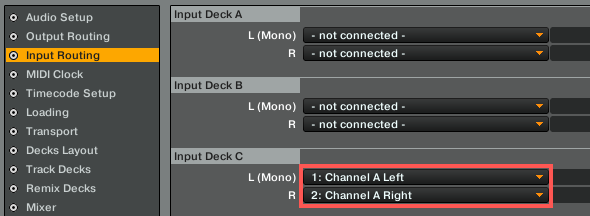
- In TRAKTOR Preferences > Input Routing, assign the input channel to which you connected both audio interfaces to a free Input Deck in TRAKTOR. In our example, we are assigning Channel A left and Channel A Right of the TRAKTOR KONTROL S4 to Input Deck C.
- In Preferences > Decks Layout, switch the Deck Flavor for Deck C to Live Input.
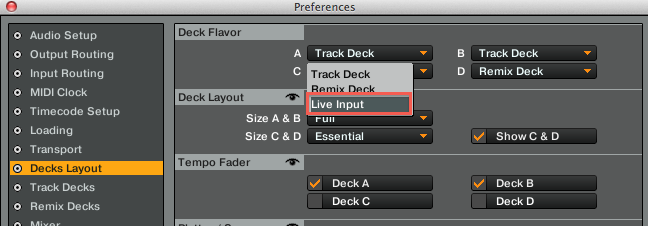
Now the sound coming from MASCHINE 2 will be routed directly into Deck C of TRAKTOR. You can control it with the corresponding volume fader, EQ, filter and add effects just like you would with a normal Track Deck.
Was this article helpful?
That’s Great!
Thank you for your feedback
Sorry! We couldn't be helpful
Thank you for your feedback
Feedback sent
We appreciate your effort and will try to fix the article