How to Make MASCHINE 2 Rescan your Default NI Plug-in Paths [VIDEO]
TABLE OF CONTENTS
Video
macOS
- Make sure MASCHINE is not running.
- Navigate to the following folder:
Macintosh HD > Users > *Your User Name* > Library > Application Support > Native Instruments > Maschine 2Note: the User Library folder is hidden. To access it, click on Go in the menu bar and press the Alt key. You'll now find the Library entry in the menu:

- Delete the files in that folder:
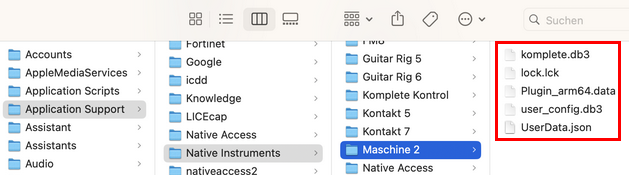
- Start MASCHINE in standalone mode. You find the standalone application here:
Macintosh HD > Applications > Native Instruments > Maschine 2
A splash screen will indicate that it is scanning your libraries and plug-ins. Once complete, the database will have been newly initialized.
Windows:
- Make sure MASCHINE is not running.
- Navigate to the following folder:
C > Users > *User name* > App Data > Local > Native Instruments > Maschine 2Important note: 'App Data' is a hidden folder. Read this article to learn how to enable the view of hidden folders on your Windows system.
- Delete all the files contained in that folder.

- Start MASCHINE 2 in standalone mode. You find the standalone application here:
C: > Program Files > Native Instruments > Maschine 2
A splash screen will indicate that it is scanning your Native Instruments libraries and plug-ins. Once complete, the database will have been newly initialized.
Was this article helpful?
That’s Great!
Thank you for your feedback
Sorry! We couldn't be helpful
Thank you for your feedback
Feedback sent
We appreciate your effort and will try to fix the article