In Cubase, the Native Instruments software is used via the VST plug-in interface. In order to use your NI plug-ins in Cubase, you must ensure that Cubase scans the folders where your NI VST plug-ins are located. This article describes this procedure for both Mac and Window systems.
TABLE OF CONTENTS
Note: Cubase 9 is not compatible with 32-bit plug-ins anymore. This article is only referring to the 64-bit VST plug-in versions.
macOS
On a Mac computer all VST files are automatically installed to the same folder so you do not need to define a VST folder during the installation of your NI product. The VST plug-in folder is located here:
- Macintosh HD > Library > Audio > Plug-Ins > VST
Cubase automatically scans this folder at each startup and recognizes any new plug-in that has been installed.
Windows
Installing the NI VST Plug-ins
On a Windows computer, the VST3 files are automatically installed to a default location. Cubase automatically scans this folder at each startup and recognizes any new plug-in that has been installed. Don't move the VST3 files from this folder:
- C: > Program Files > Common Files > VST3
Some products still come with VST2 versions. If available, these will be installed in the default path:
- C: > Program Files > Native Instruments > VSTPlugins 64 bit
Please note that VST2 plug-ins are deactivated by default in Cubase 14 / Nuendo 14. If you want to activate VST2 plug-ins, please follow the instructions in this Steinberg article.
Adding the NI VST Plug-in Folder in Cubase 9 (and higher)
Follow the steps below to add your NI VST folder to Cubase 9 (and higher):
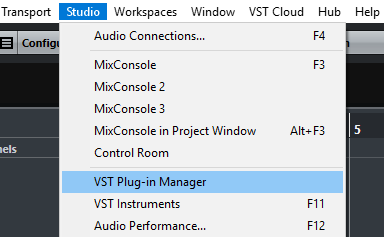
- Start Cubase, open the Studio menu and select the entry VSTPlug-in Manager.
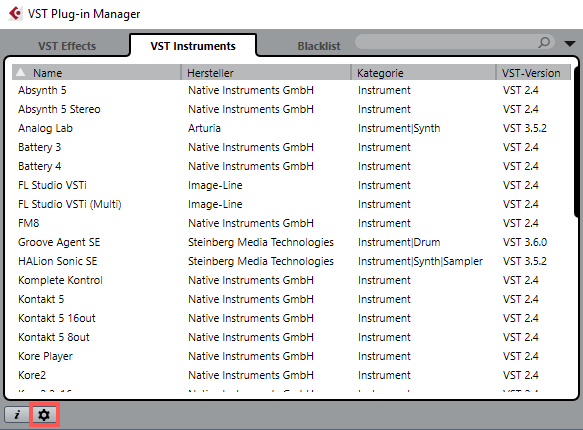
- In the lower left corner of the VSTPlug-in Manager window, open the Plug-in Manager Settings by clicking the cogwheel icon.
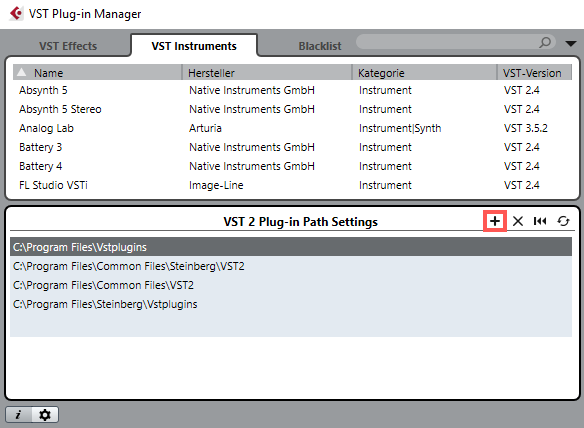
- In the Plug-in Manager Settings window, click on the + button.
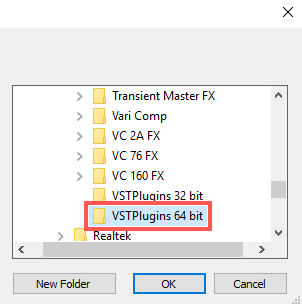
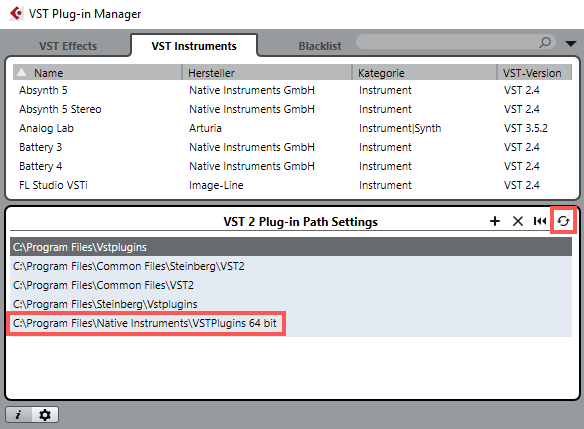
- Select the folder where your plug-ins are located on your hard drive and press the OK button to proceed. In our example, we select the default Native Instruments 64-bit plug-ins folder VSTPlugins 64 bit.
- The new path is now listed in Cubase's plug-in paths. Press the Rescan button to rescan the folders listed in the Plug-in Manager Settings.
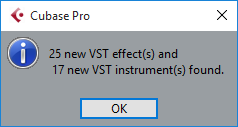
- Cubase notifies that new plug-ins have been recognized. Press OK to proceed.
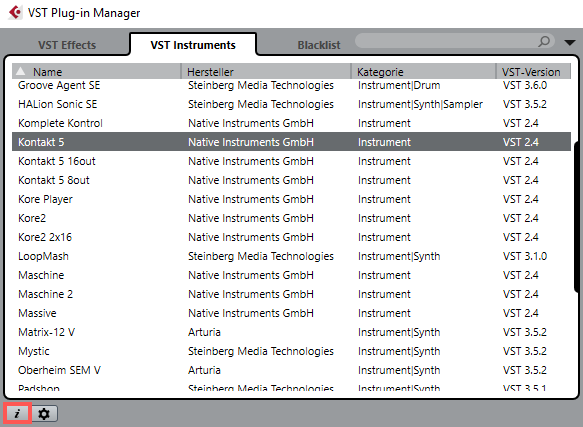
- Your NI Plug-ins are now listed in the Plug-in Manager window. Instruments like Reaktor, Kontakt, or Maschine will be listed in the VST Instruments tab, and effects like Guitar Rig, Driver, etc. in the VST Effects tab.
Plug-in Information
Additionally, the Plug-in Manager window provides information on the installed plug-ins which can be useful for troubleshooting technical issues. Follow the steps below to obtain information on your NI plug-in.
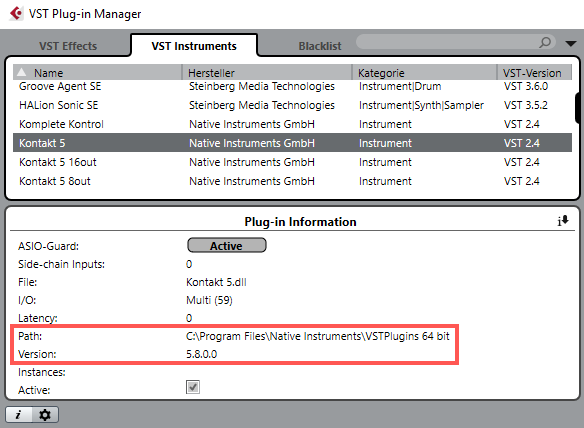
- Select the plug-in you want to obtain information on by clicking its name on the list. Once selected, press the Show Plug-in Information ('info') button on the lower left part of the Plug-in Manager window. In our example, we want to obtain information on the Kontakt 5 plug-in.
- In the Plug-in Information field, you will find useful information such as the exact version number of the plug-in and the path Cubase uses to load the plug-in. This field is useful for example to verify if the plug-in version matches the currently installed standalone version. You can also find the version numbers of all currently installed products in Native Access.
Was this article helpful?
That’s Great!
Thank you for your feedback
Sorry! We couldn't be helpful
Thank you for your feedback
Feedback sent
We appreciate your effort and will try to fix the article