In Cubase, the Native Instruments software is used via the VST plug-in interface. During the original installation of your Native Instrument product, you must thus make sure you have selected the VST plug-in format in the installer.
TABLE OF CONTENTS
The Plug-in Directory
OS X
On a Mac OS X computer all VST files are automatically installed into the same folder, so you don't need to define the VST folder during the installation of a Native Instruments product. Cubase automatically scans this default VST plug-in location during each startup and will recognize any new plug-in that has been installed.
Windows
On a Windows computer, the VST versions of the software can be installed to any location on your hard drive. We strongly recommended to use the same folder for all your VST files, especially if you are using several host programs.
If you have only installed the Cubase 32-bit version, we recommend to install the VST files as shown below.
- 32-bit operating systems: C: > Program Files > VSTPlugins
- 64-bit operating systems: C: > Program Files (x86) > VSTPlugins
If you are using Cubase in both the 32-bit version and the 64-bit version, it is recommended to define separate VST folders for each version of Cubase and install all VST files into their respective folder:
- 32-bit plugin version: C: > Program Files (x86) > VSTPlugins
- 64-bit plugin version: C: > Program Files > VSTPlugins
Setting the Plug-in folders in Cubase
No matter where you installed the VST plug-in, you need to define the correct VST folder in Cubase to make sure that this location is searched by Cubase at startup.
To do this, carry out the steps below:
- Start Cubase, open the Devices menu and select the entry Plug-in Information.
- This will open a window which shows all plug-ins recognized by Cubase as well as some further information like version numbers etc.. It also shows the path of each plug-in:
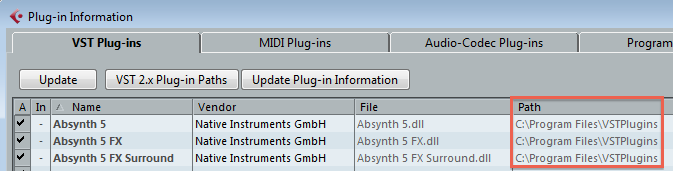
- In order to set the correct path to your VST folder, click the button VST 2.x Plug-in Paths button. This will open a window showing all folders Cubase is scanning for VST files:
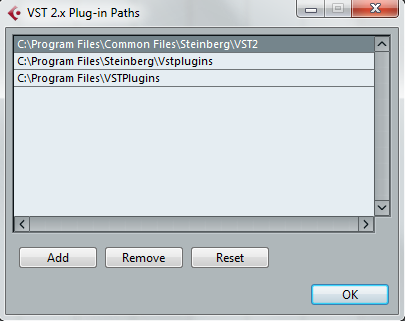
- If the list does not contain the folder you installed your VST plug-ins to, click the Add button and navigate to that folder. Then press OK to select it.
- Close Cubase and restart. Cubase will scan the folder and its VST files.
- Your plug-ins should appear in the Plug-in Information window now.
The Plug-in Information Window
The Plug-in Information window with the list of plug-ins offers you more information that might be useful for troubleshooting:
Version Number
In the Version column you can see which plug-in version Cubase is using.
Make sure that this version matches the standalone version of the application. You should also check if a newer version (update) is available in Native Access
Category
Under Category you can check if your plug-in is an effect that can be loaded to an effects slot or an instrument that you can load to the VST Instruments rack.
Was this article helpful?
That’s Great!
Thank you for your feedback
Sorry! We couldn't be helpful
Thank you for your feedback
Feedback sent
We appreciate your effort and will try to fix the article