Kontakt | Error Message: "This instrument belongs to a library that is currently not installed"
When you try to load an Instrument in Kontakt (Player), you may see the following error message:
This instrument belongs to a library that is currently not installed
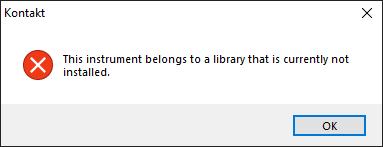
This message usually appears for one of the following reasons:
- You're trying to load a newer library preset into an older version of Kontakt (Player).
- You're trying to load an instrument from the Files tab in Kontakt (Player) before the library has been activated in Native Access.
To resolve this, please select your version of Native Access below and follow the steps:
TABLE OF CONTENTS
Native Access 2
Use the Latest Kontakt (Player) Software.
If your Kontakt library is activated in Native Access, but you receive this error in Kontakt (Player), your library might require a newer version of the Kontakt (Player) software.
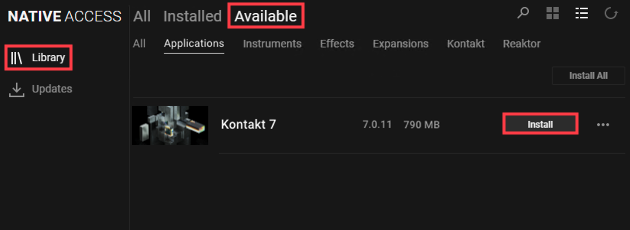
1. Start Native Access and go to Library > Available.
2. Install the latest Kontakt (Player), if available.
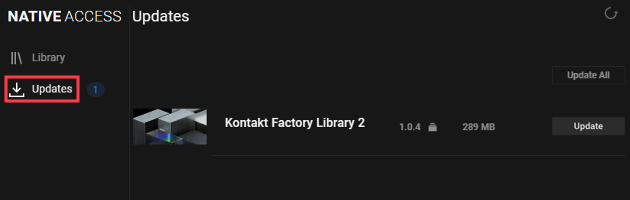
3. Click the Updates tab in Native Access to check for any additional updates. If any updates appear in this section, please install them.
4. Once installed, start the new Kontakt (Player) to open your library.
If you still receive the same error message, please proceed to the next steps below.
Check the Library in Native Access
Note: This solution applies only to Native Instruments Kontakt Libraries.
1. Start Native Access and go to Library > Available.
2. Scroll to the Kontakt library entry and select Locate from the three dots menu.
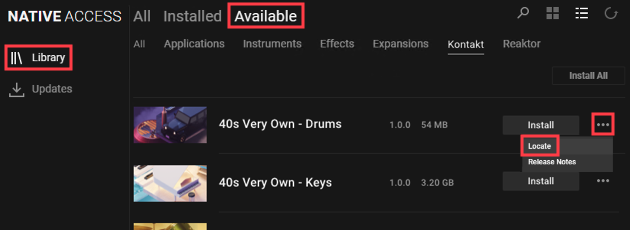
3. Click the Folder icon and navigate to the location of the Kontakt library folder. Click Confirm once the library folder is chosen.
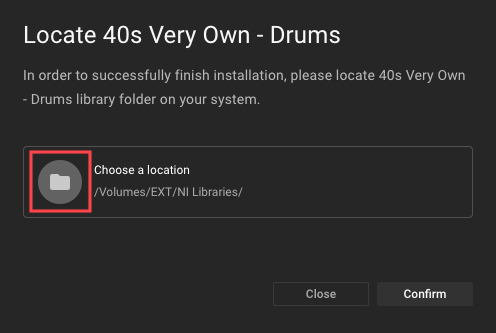
4. Start Kontakt (Player) to open your library.
Native Access 1
Use the Latest Kontakt (Player) Software
If your Kontakt library is activated in Native Access, but you receive this error in Kontakt (Player), your library might require a newer version of the Kontakt (Player) software.
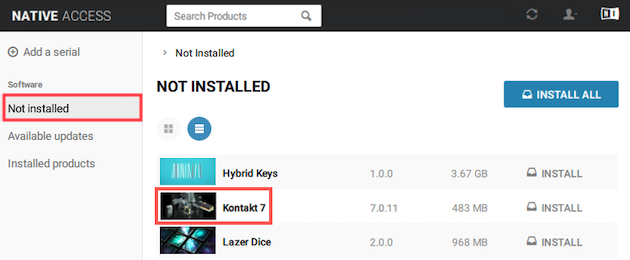
1. Start Native Access and click the Not Installed tab.
2. Install the latest Kontakt (Player), if available.
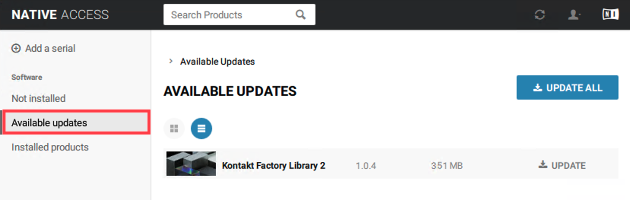
3. Click the Available Updates tab in Native Access to check for any additional updates. If any updates appear in this section, please install them.
4. Once installed, start the new Kontakt (Player) to open your library.
If you still receive the same error message, please proceed to the next steps below.
Check the Library in Native Access
Note: This solution applies only to Native Instruments Kontakt Libraries. If using a third-party Kontakt library.
1. Start Native Access and click the Not Installed tab.
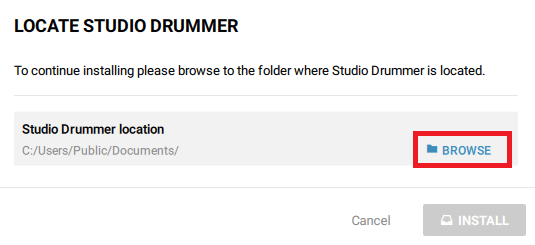
2. Hover your mouse over the Kontakt library, and the LOCATE option will appear next to the INSTALL tab.
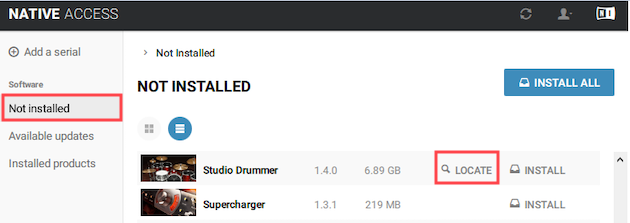
3. Click the BROWSE tab and navigate to the location of the Kontakt library folder. Click INSTALL once the library folder is chosen.
4. Start Kontakt (Player) to open your library.
Was this article helpful?
That’s Great!
Thank you for your feedback
Sorry! We couldn't be helpful
Thank you for your feedback
Feedback sent
We appreciate your effort and will try to fix the article