TABLE OF CONTENTS
Symptom
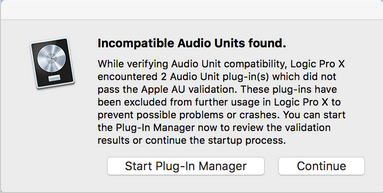
When launching Logic Pro, the following error message appears:
Incompatible Audio Units found.
Cause
The NI plug-in fails to be validated by Logic's Plug-in Manager due to a corrupt activation file.
Solutions
1. Check for Updates
Start Native Access and check for updates. If any product updates are available, please install them. Also make sure that the latest Logic Pro update is installed.
2. Allow Full Disk Access to Logic Pro
Please grant Full Disk Access to Logic Pro. You can find more info and the instructions in this article.
3. Rescan and Validate Plug-Ins
- After granting Full Disk Access to Logic Pro, restart Logic and click Start Plug-In Manager when the error message appears. You can also open the Logic Plug-In Manager from the Logic taskbar.
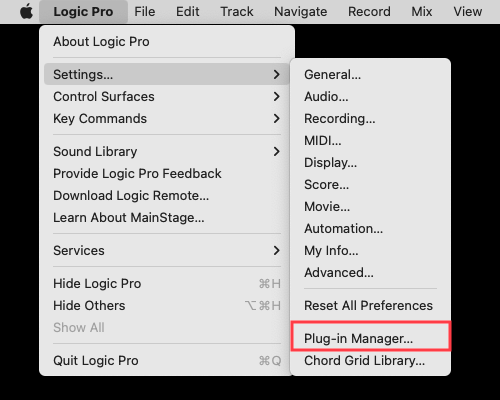
- Scroll to highlight the affected plug-in and click Reset & Rescan Selection.
- Close the Logic Plug-In Manager and reload your project.
Your Native Instruments plug-ins should now be working in Logic Pro. If the issue persists, please proceed to the next section below.
4. Further Troubleshooting
Click the Start Plug-In Manager when the error message appears. This shows which plug-ins are failing validation. Take note of the Native Instruments plug-ins that list in your plug-in manager as crashed validation. In this example, it's Maschine 2.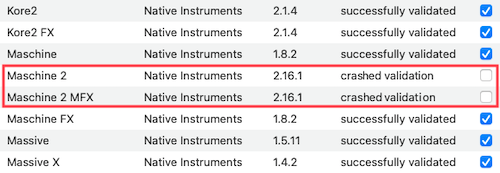
Follow the steps below to resolve the issue:
- Open the following location on your computer:
Macintosh HD > Users > *Username* > LibraryNote: See this article or the video below for instructions to access the hidden User Library folder on macOS.
- Delete the product folder for the affected plug-in from:
Macintosh HD > Users > *Username* > Library > Application Support > Native Instruments > *Product Name* folder - Delete the plist file for the affected plug-in from:
Macintosh HD > Users > *Username* > Library > Preferences > com.native-instruments.*Product Name*.plist - Delete this cache file from:
Macintosh HD > Users > *Username* > Library > Caches > AudioUnitCache > com.apple.audiounits.cache - Empty your system trash and restart the computer.
- Open Logic and allow it to rescan all of your AU plug-ins.
Note: The User Library is a hidden folder on macOS. To access it, click 'Go' in the Finder menu bar and hold down the 'Alt' key. The Library entry will now appear in the menu.

Was this article helpful?
That’s Great!
Thank you for your feedback
Sorry! We couldn't be helpful
Thank you for your feedback
Feedback sent
We appreciate your effort and will try to fix the article