Native Instruments plugins in Logic Pro use the Audio Unit (AU) format and are automatically managed by Logic without needing manual folder setup.
TABLE OF CONTENTS
Plug-in Directory
All Audio Unit files are automatically installed into the same folder so there is no need to specify an installation path for the Audio Units files. The default path is the following:
Mac HD > Library > Audio > Plug-Ins > Components
Logic Pro automatically scans this default Audio Unit plug-in directory during each startup and will recognize any new plug-in that has been installed.
Plug-in Administration
In the Logic Pro menu bar, open the Preferences and go to the Plug-in Manager...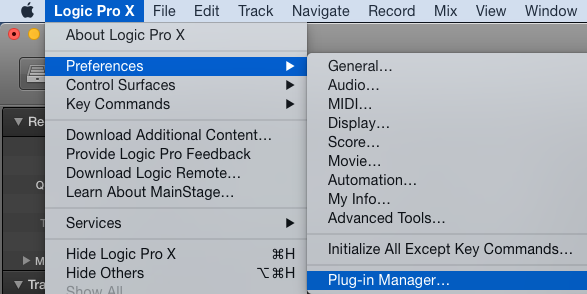
The Plug-in Manager provides an overview of the plug-ins Logic Pro has recognized. On the left side of the Plug-in Manager you can sort them by Manufacturer.
In the screenshot below, we have selected Native Instruments. Here, you can check the installed version of your NI plug-ins and see if they have been correctly validated. With the buttons at the bottom of the window you can either disable AUs that do not run properly (Disable Failed Audio Units) or perform a rescan of single plug-ins you are having problems with (Reset & Rescan Selection).
Note: If Logic Pro does not recognize your NI plug-in, read the article My Native Instruments Plug-In Does Not Appear in Logic.
Was this article helpful?
That’s Great!
Thank you for your feedback
Sorry! We couldn't be helpful
Thank you for your feedback
Feedback sent
We appreciate your effort and will try to fix the article