On Mac computers, Native Instruments products can be loaded either as VST or AU plug-ins. Once the products are installed, FL Studio 20 must scan your plug-in directories in order to make them available in the FL Studio 20 Plugin Database Browser. You can find instructions for Windows in this article.
Info for Mac users: FL Studio 20 introduces the ability to use Audio Units (AU) on Mac computers; however, we recommend using VST whenever possible for the following reasons:
- Sharing projects - If you are sharing projects with Windows users, you must use the VST versions of plugins since Audio Units are not available on Windows.
- MIDI out - AU does not support MIDI out to other plugins.
On a Mac computer, VST files and AU files are automatically installed to the default system folders. FL Studio 20 scans these folders on startup. If your NI plug-ins do not appear in the FL Studio 20 Plugin Database Browser, do the following:
- Open FL Studio.
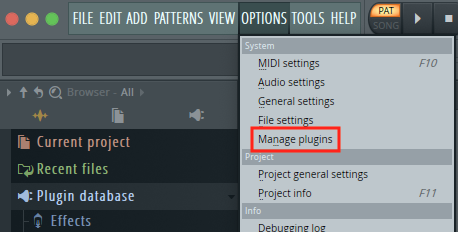
- In the menu bar, click on Options and select Manage Plugins.
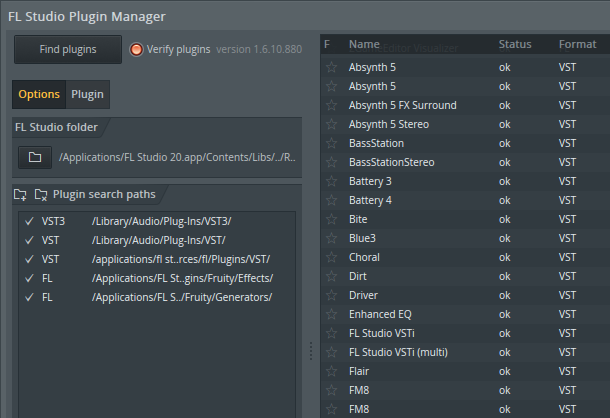
- The FL Studio Plugin Manager appears. Make note of the listed plugin search paths to the left, as well as the actual list of plug-ins to the right. The list will indicate the plug-ins which are installed in the AU, and VST formats.
- If your NI Plug-Ins are not showing in the FL Studio Plugin Manager list, click on the folder symbol (+) to add a Plugin search path.
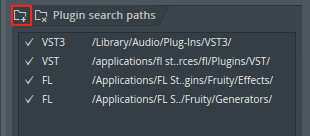
Note: It is only recommended to add the default MacOS VST folder / path, if it does not appear by default in the FL Studio Plugin Search Paths (as seen in the example above).
The default MacOS VST folder/path is: Macintosh HD > Library > Audio > Plug-Ins > VST
If it was necessary to add the default MacOS VST folder / path to the FL Studio Plugin Search Paths, press the Find plugins button once.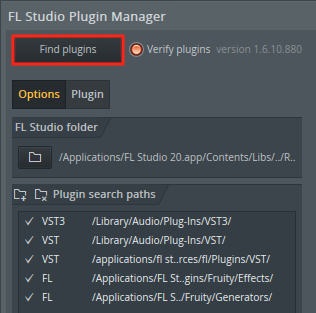
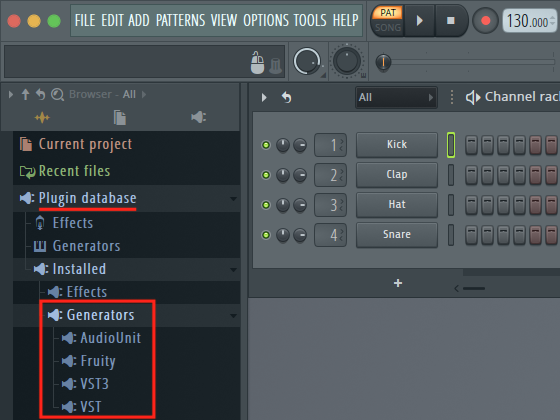
After your system plug-in folders have been scanned, the NI plug-ins will now be available in the FL Studio Plugin Database Browser. - You have the option to use the Audio Unit and/or the VST Plug-In versions of your NI Plug-Ins.
Was this article helpful?
That’s Great!
Thank you for your feedback
Sorry! We couldn't be helpful
Thank you for your feedback
Feedback sent
We appreciate your effort and will try to fix the article