Plug-in Administration in FL Studio 11 (or Earlier Versions)
In FL Studio, Native Instruments software can be inserted via the VST plug-in interface. This article explains how to let FL Studio 11 (or earlier) scan the folder where your NI VST plug-ins are installed. You will then be able to use your NI plug-ins within FL Studio.
Note: Watch this video for more information about managing VST plug-ins on Windows computers.
TABLE OF CONTENTS
Installing the NI VST Plug-ins
On a Windows computer, the VST versions of the software can be installed to any location on your hard drive. Read this article to learn how to define the plug-in install locations for your product in Native Access.
Defining a Plug-In Location in FL Studio
VST versions of the software can be installed in any location on your hard drive. It is recommended to define a fixed folder for all your VST files, especially if you are using different host applications. Make sure the specified VST directory is scanned by Fruity Loops Studio at startup as explained below:
Open FL Studio.
- In the menu bar, click on Options and select File Settings. A pop-up window will appear showing extra search folders for samples and plug-ins.
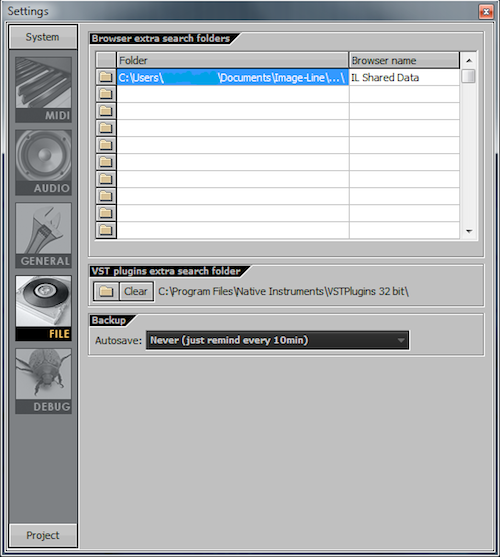
- Click on the folder icon located beneath the VST plugins extra search folder and select the install location of your VST plug-ins.
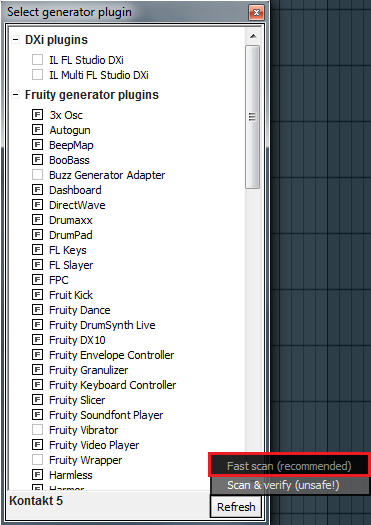
- Go to Channels > Add one, and select More
- Select Fast scan(recommended). Now your VST plug-ins will show up in FL Studio.
Was this article helpful?
That’s Great!
Thank you for your feedback
Sorry! We couldn't be helpful
Thank you for your feedback
Feedback sent
We appreciate your effort and will try to fix the article