Pro Tools Guide: Sending MIDI from the Komplete Kontrol Plug-in
This article explains how to route MIDI from Komplete Kontrol to a separate Instrument Track or MIDI Track in Pro Tools. This is useful for sending the Komplete Kontrol Smart Play features (e.g. Arp / Chord / Scale) to additional software instruments loaded in Pro Tools, or external hardware devices.
TABLE OF CONTENTS
- Routing Komplete Kontrol MIDI to Another Instrument Track
- Routing Komplete Kontrol MIDI to an External Hardware Device
Routing Komplete Kontrol MIDI to Another Instrument Track
- Load the Komplete Kontrol plug-in on an Instrument Track in Pro Tools
- Choose Track > New in the Pro Tools menu bar to create an additional Instrument Track. This will receive MIDI from the initial Komplete Kontrol Instrument Track.

- In the New Tracks dialog, choose Stereo and Instrument Track. Once done, click the Create button to create the new Instrument Track.

Note: You can add as many additional Instrument Tracks as you want, just be sure to apply the following steps to each new plug-in that you load.
- Click the first slot under INSERTS A-E, and navigate the drop-down menu to select the additional plug-in you want to load. To do so, choose multichannel plug-in > Instrument > *your favorite plug-in*. In this example, we select the third-party plug-in Diva (Stereo).

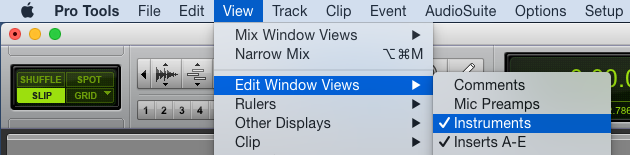
- Make sure the Instrument field is visible in the edit window. To do so, choose View > Edit Window Views > Instruments in the menu bar.
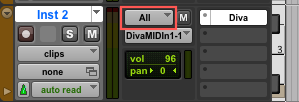
- In the new Instrument Track, click the MIDI Input selector.
Note: This is set to All by default.
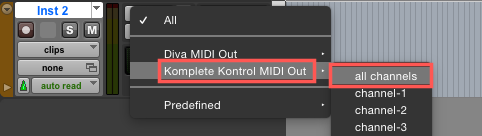
- In the MIDI Input selector drop-down menu, select Komplete Kontrol MIDI Out > all channels.
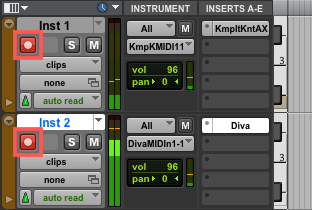
- Make sure that the Record Enable buttons are activated on both of the tracks.
Note: Hold down SHIFT on your computer keyboard and click the tabs outlined below to activate Record Enable on both Instrument Tracks.
- Enable one of the Komplete Kontrol Smart Play features (e.g. Arp / Chord / Scale) with your Komplete Kontrol hardware, or open the Komplete Kontrol plug-in window to activate one of the performance features. In this example, the ARP (Arpeggiator) is active.
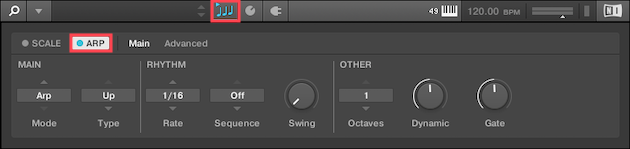
- Play some MIDI notes, and you should now hear the Komplete Kontrol Smart Play features (e.g. Arp / Chord / Scale) through the plug-in loaded in the additional Instrument Track.
Note: It is not required to have a preset loaded in the Komplete Kontrol plug-in to send its Smart Play features to the additional Instrument Track. You have the option to run Komplete Kontrol empty or have a Komplete sound preset loaded for additional sound layering.
Routing Komplete Kontrol MIDI to an External Hardware Device
- Load Komplete Kontrol in an Instrument Track in Pro Tools
- Choose Track > New in the Pro Tools menu bar to create a new MIDI Track. This will receive MIDI from the initial Komplete Kontrol Instrument Track.

- In the New Tracks dialog, select MIDI Track. Once done, click the Create button to create the new MIDI Track.

Note: You can add as many additional MIDI Tracks as you need, just be sure to apply the following steps to each of the MIDI Tracks.
- Make sure the I/O field is visible in the edit window. To do so, choose View > Edit Window Views > I/O in the menu bar.
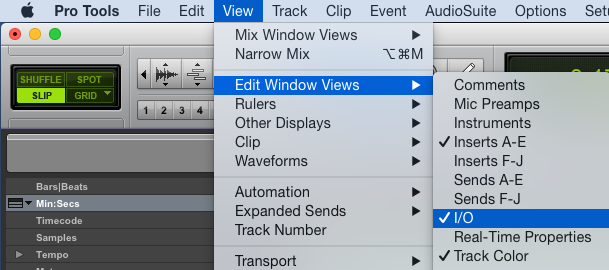
- In the MIDI Track, click the MIDI Input selector.
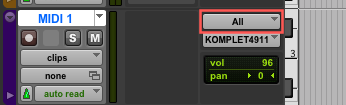
Note: This is set to All by default.
- In the MIDI Input selector drop-down menu, select Komplete Kontrol MIDI Out > all channels.
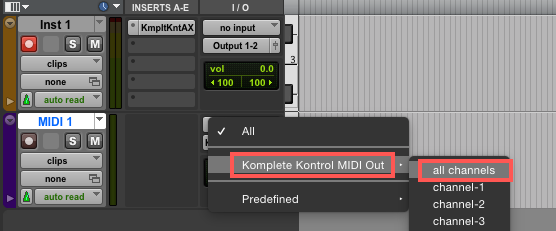
- Click the MIDI Output selector to open the selector's drop-down menu.
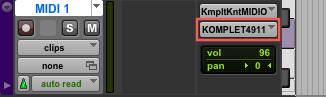
- Select the MIDI Output port and MIDI Channel you want to use for sending MIDI to your external hardware device. In our example, we choose Komplete Kontrol S49, Port 2 > channel-1, since our external hardware is connected to receive MIDI from the port on the back of the Komplete Kontrol S49 keyboard (via MIDI Channel 1).
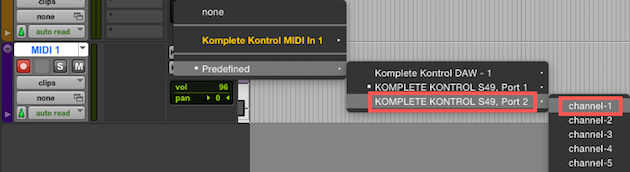
Note: This setting will depend on which MIDI Interface you are using, as well as which MIDI Channel your external MIDI sound source is set to receive on.
- In most cases, you may wish to monitor or record the audio from your external MIDI sound source in Pro Tools. To do this, choose Track > New in the Pro Tools menu bar to create a new Audio Track.

- In the New Tracks dialog, select Stereo and Audio Track. Once done, click the Create button to create the new Audio Track.

Note: You have the option to select Mono or Stereo in this New Tracks dialog depending on whether your external MIDI sound source utilizes a single Mono or Stereo pair of output jacks.
- In the Audio Track, click the Audio Input Path selector to access its drop-down menu.
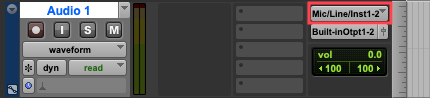
- Select the audio interface input that your external MIDI sound source is connected to. In our example, we choose the first stereo pair of inputs (Mic/Line/Inst 1-2 (Stereo)) from the list, since our external MIDI sound source has a stereo pair of outputs connected to the first set of inputs of this audio interface.
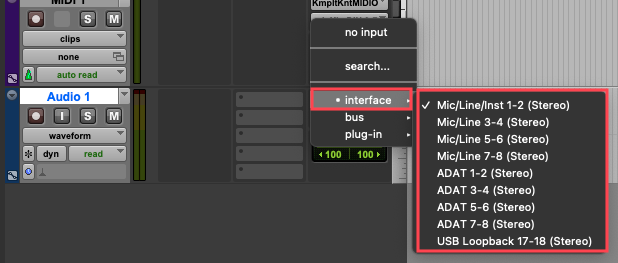
Note: This setting will vary, depending on which Audio Interface and configuration you are using.
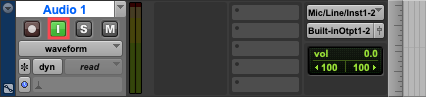
- Make sure that the Track Input Monitor button is activated in the Audio Track.
- Make sure that the Record Enable buttons are activated on your Instrument and MIDI tracks.
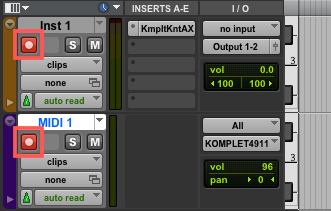
Note: Hold down SHIFT on your computer keyboard and click the tabs outlined below to activate Record Enable on your Instrument and MIDI Tracks.
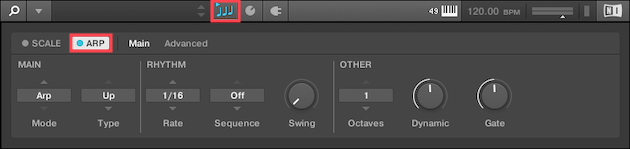
- Enable one of the Komplete Kontrol Smart Play features (e.g. Arp / Chord / Scale) with your Komplete Kontrol hardware, or open the Komplete Kontrol plug-in window to activate one of the performance features. In this example, the ARP (Arpeggiator) is active.
- Play some MIDI notes, and you should now hear the Komplete Kontrol Smart Play features (e.g. Arp / Chord / Scale) through your external MIDI sound source.
Note: It is not required to have a preset loaded in the Komplete Kontrol plug-in to send its Smart Play features to your external MIDI sound source. You have the option to run Komplete Kontrol empty or have a Komplete sound preset loaded for additional sound layering.
Was this article helpful?
That’s Great!
Thank you for your feedback
Sorry! We couldn't be helpful
Thank you for your feedback
Feedback sent
We appreciate your effort and will try to fix the article