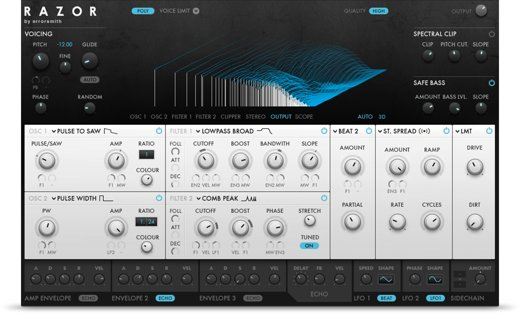
In this video, we will show you how to configure Razor to be used as a vocoder in Ableton Live. You can also find written instructions directly below the video.
Note: The video uses Reaktor 5 and Ableton Live 9, but the setup is the same in the current versions.
- Create one MIDI track and also one Audio track in Ableton Live.
- Insert Reaktor as a VST effect plug-in on the Audio track (here named "Vocals"). In this example, the Reaktor 6 FX plug-in is used.
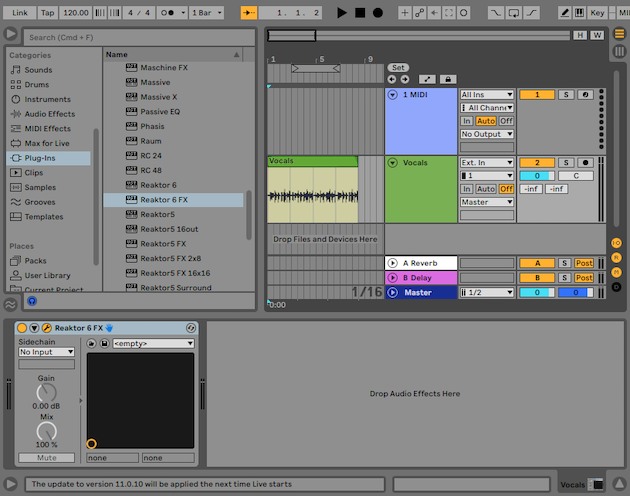
Note: In this example, the Audio track (named "Vocals") contains a pre-recorded audio clip. This will be important later in step 7.
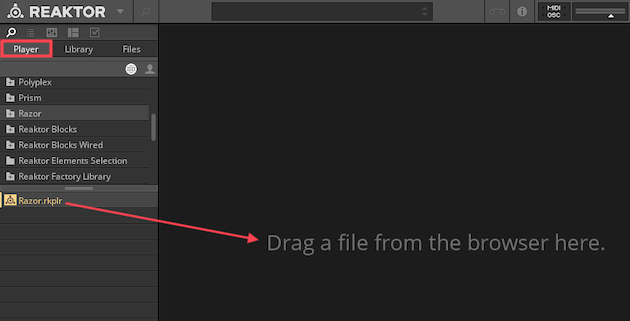
- Open the Reaktor plug-in window and load Razor from the Player section of the Browser.
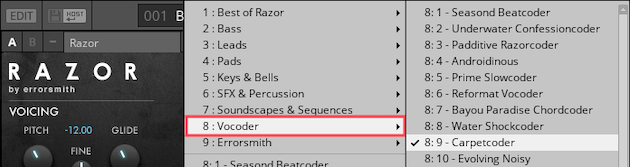
- Open a Vocoder preset from the Razor preset drop-down menu.
- On your MIDI track, assign the Output Type drop-down menu to the Audio track (here named Vocals).
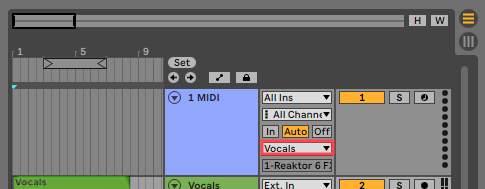
Note: If working in Live's Session View, the MIDI track's Output Type menu will be labeled: "MIDI To".
- Record enable the MIDI track.
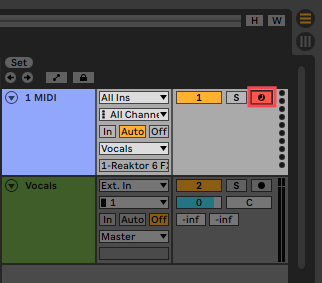
- Press play in Ableton and play some notes with your MIDI keyboard. The Razor Vocoder effect will now be applied to the audio content loaded on the Vocals track.
Was this article helpful?
That’s Great!
Thank you for your feedback
Sorry! We couldn't be helpful
Thank you for your feedback
Feedback sent
We appreciate your effort and will try to fix the article