How to Use The Finger as a MIDI-Controlled FX in Ableton Live
This article explains how to configure The Finger as a MIDI-controlled FX in Ableton Live. In contrast to common FX plug-ins, the parameters of MIDI-controlled FX can be controlled via MIDI, e.g. by playing a MIDI keyboard.
- Create a MIDI track in Ableton Live.
- Create an audio track. In this example, we have named the audio track Vocals.
- Insert Reaktor 6 FX as a VST effect plug-in on the Vocals track.
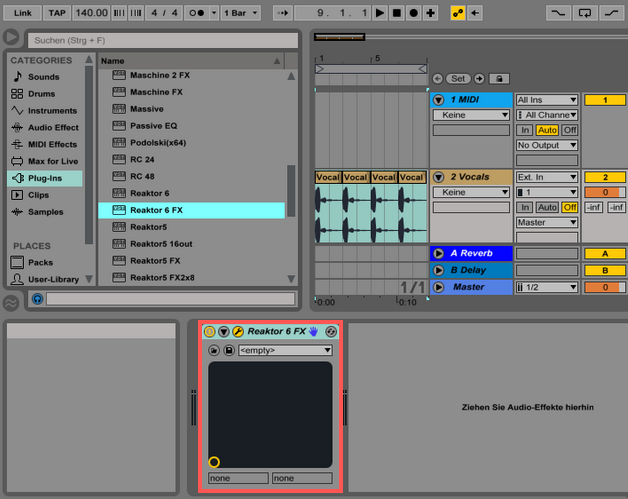
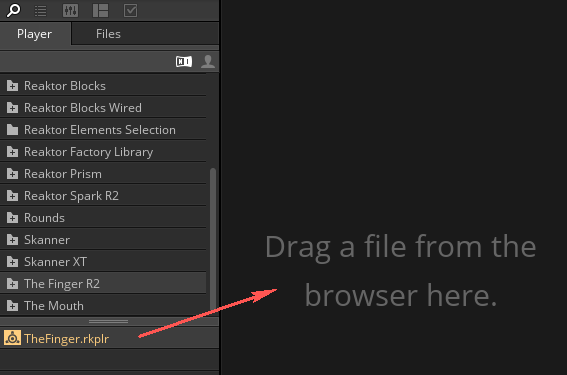
- Open up the Reaktor 6 FX plug-in interface and load The Finger.
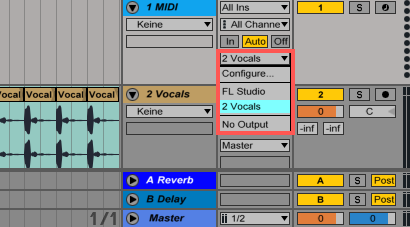
- In the Output Type drop-down menu (or the MIDI To drop-down if you are working in Live's Session View) of the MIDI track select Vocals.
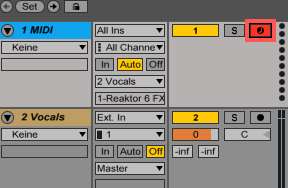
- Record enable the MIDI track.
By pressing notes on your MIDI keyboard, it is now possible to switch between The Finger's different effects (eg. bandpass, time-stretching or looping effects, etc.) to process the audio track.
Was this article helpful?
That’s Great!
Thank you for your feedback
Sorry! We couldn't be helpful
Thank you for your feedback
Feedback sent
We appreciate your effort and will try to fix the article