This guide explains how to mount an ISO disk image on Windows in order to install Native Instruments products.
Follow the steps below for your version of Windows.
TABLE OF CONTENTS
Windows 8 / 10
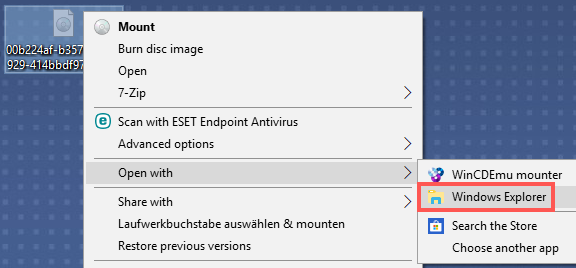
- Right-click the ISO-file and choose Open with > Windows Explorer
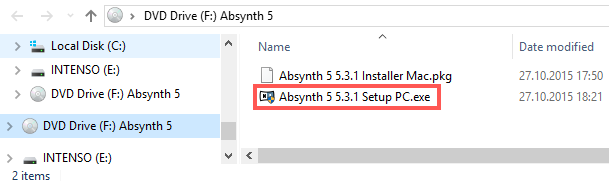
- Windows has created a virtual disk drive which you can access from the navigation sidebar. Double-click the file *product name*.exe to start the installation process.
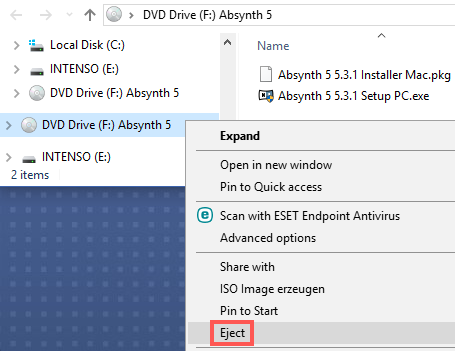
- Unmount the ISO-file after the installation process by right-clicking the virtual drive and selecting Eject.
Windows 7
On Windows 7, a third-party tool is required in order to mount the disk image, for example WinCDEmu. After the installation of WinCDEmu, follow the instructions above for Windows 8 / 10, but choosing Open with > WinCDEmu mounter in step 1 instead.
Was this article helpful?
That’s Great!
Thank you for your feedback
Sorry! We couldn't be helpful
Thank you for your feedback
Feedback sent
We appreciate your effort and will try to fix the article