How to create a License Transfer ID for your NI product
This article explains how to create a Transfer ID to sell or transfer your Native Instruments product to another of your accounts.
Creating a License Transfer ID
- Go to the License Transfer page in your NI user account and log in with your account details (email and password) if prompted.
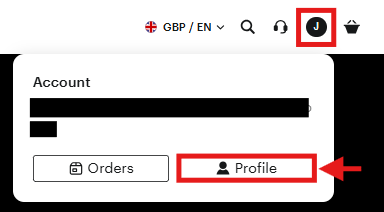
To access the License Transfer page, please follow the steps below:- Log in to your Native Instruments account
- Click Profile
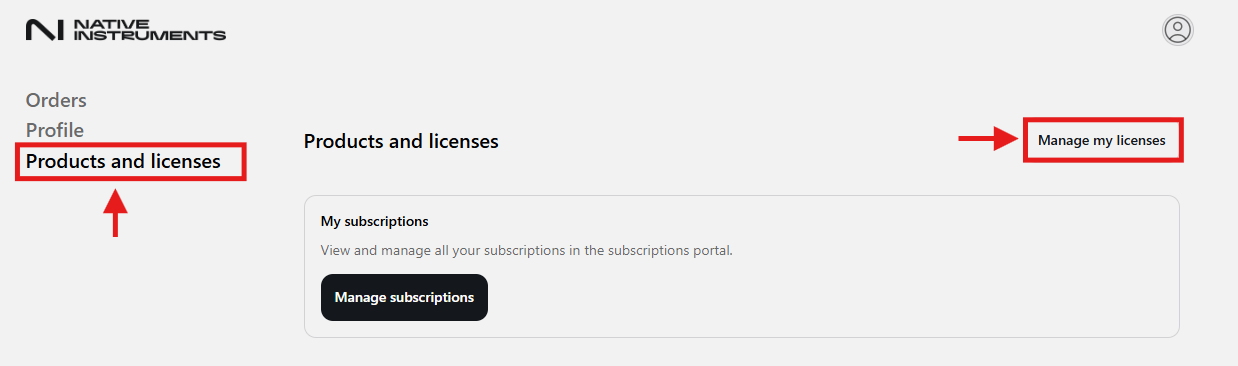
- Go to the Products and licenses tab
- Select Manage my licenses
- Under the Manage my licenses hub, select Transfer a license
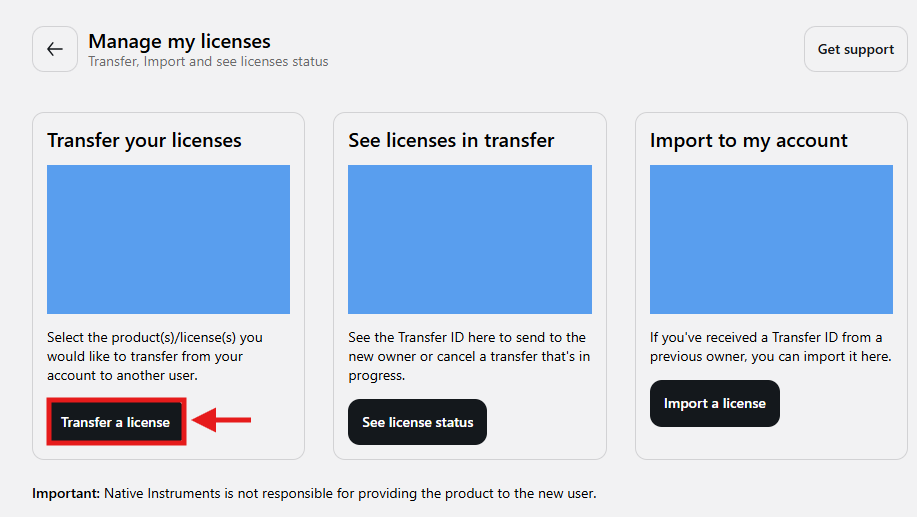
Read the instructions regarding License Transfer carefully. - On the Transfer your license page, select the product you want to sell/transfer by clicking the corresponding checkbox in the Transfer column.
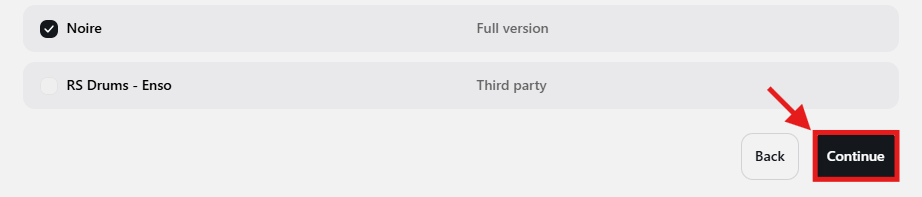
In the example below, we want to transfer the licenses for Noire.
- Once you have selected all the products you want to transfer, click Continue at the bottom of the page.
- On the Review and confirm page, you will get a summary of the products you want to transfer. After having read the terms and conditions, click the I agree to these terms and conditions checkbox. Once done, click Confirm transfer to proceed.
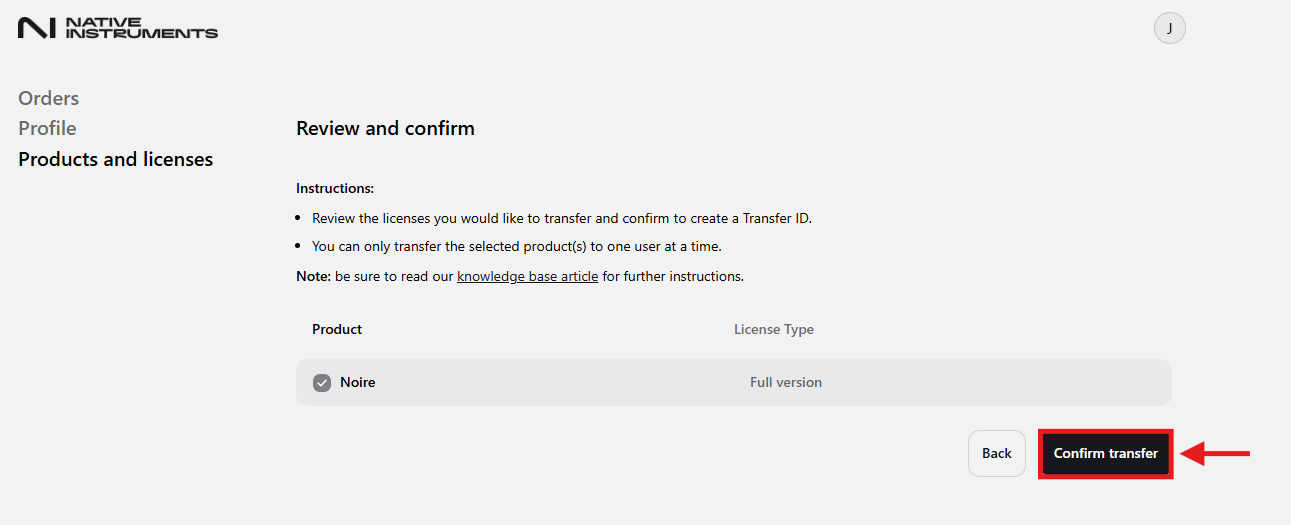
- On the next page, you will get a confirmation message that the Transfer has been created
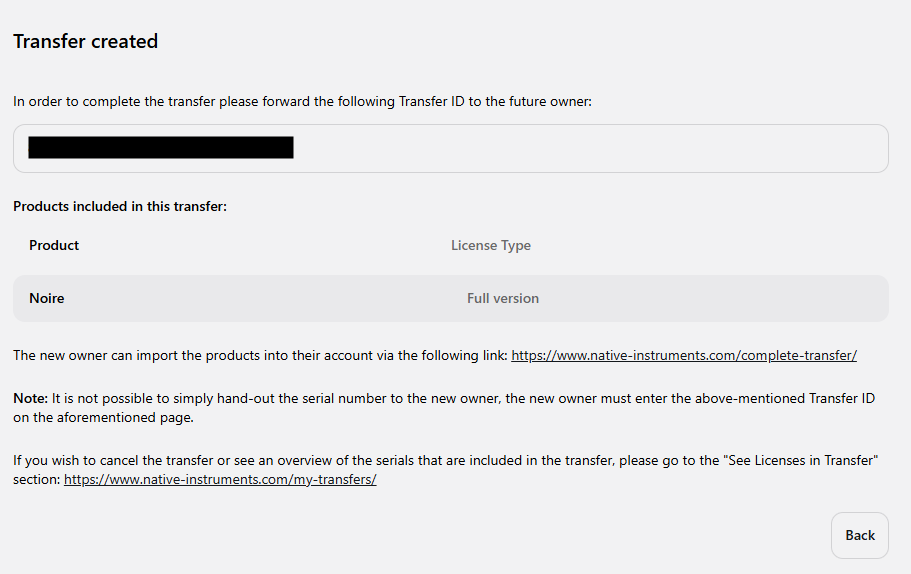
- Please forward the Transfer ID shown on the Transfer created page to the buyer of your second-hand NI product.
For example - (86b19671-04c4-47ba-b00d-aa74d7685c16)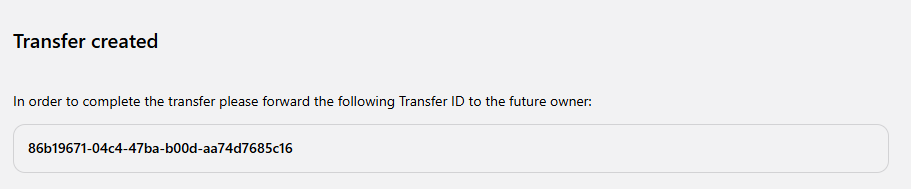
With this Transfer ID, the new user will be able to import the serial numbers of the NI products into their own NI account and activate the corresponding products on their computer via the Import License page.
Was this article helpful?
That’s Great!
Thank you for your feedback
Sorry! We couldn't be helpful
Thank you for your feedback
Feedback sent
We appreciate your effort and will try to fix the article