In some cases it might be necessary to downgrade from Native Access 2 to the original version of Native Access.
TABLE OF CONTENTS
macOS
Uninstall Native Access 2
Delete the following files and folders from your computer:
- Macintosh HD > Applications > Native Access.app
- Macintosh HD > Users > *User name* > Library > Preferences > com.native-instruments.Native Access.plist
- Macintosh HD > Users > *User name* > Library > Application Support > Native Instruments > Native Access (folder)
Note: The User Library is a hidden folder on macOS. To access it, click Go in the Finder menu bar and press down the Alt key. The Library entry will now appear in the menu.
Install Native Access
1. Download Native Access.
2. Start the installer.
3. On the start screen, click on the large Native Access icon and drag it to the Applications folder.
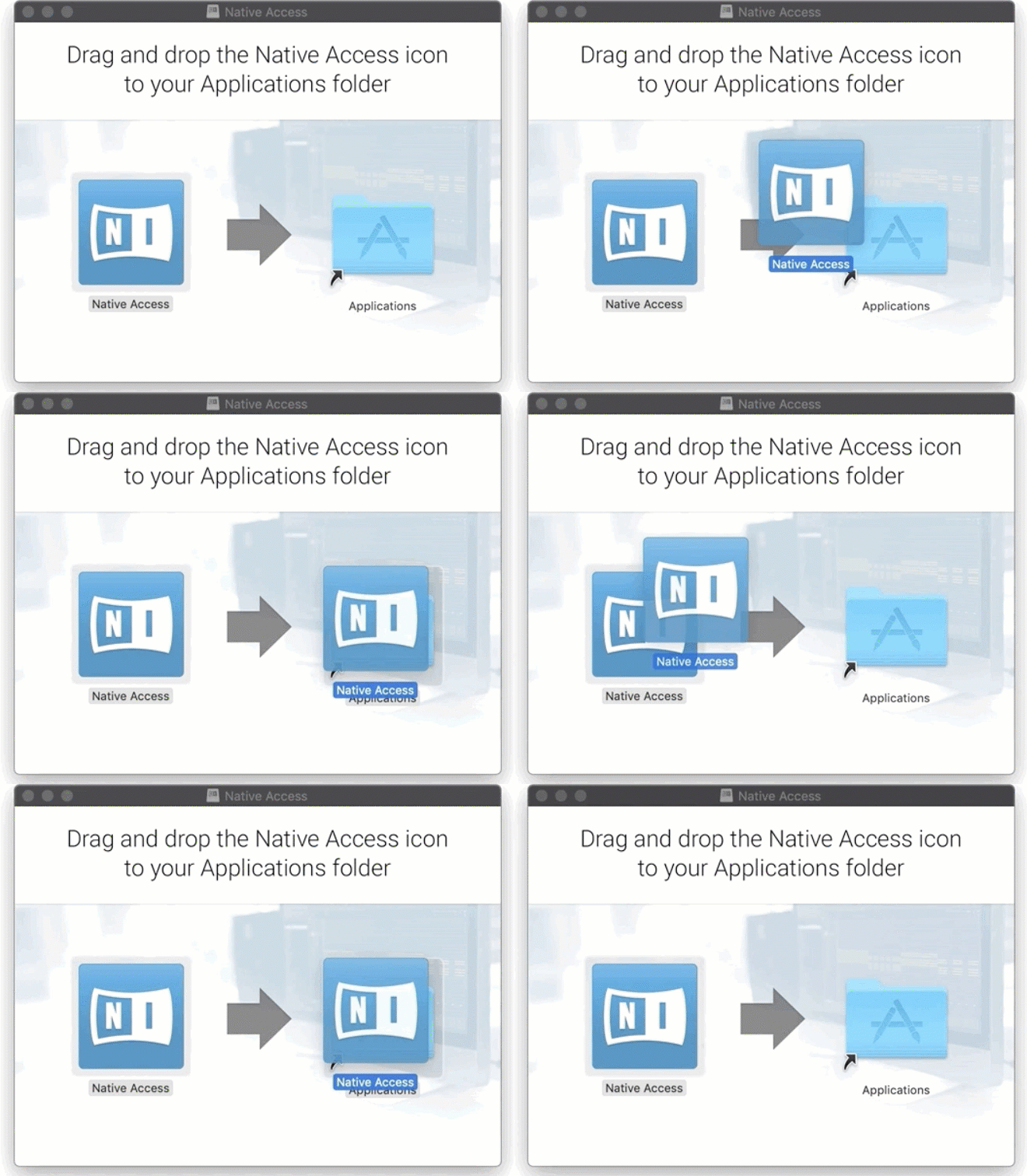
Now, you have successfully downgraded to the first version of Native Access and can start it from the Applications folder.
Windows
1. Right-click the Windows Start button and select Apps & Features.
2. Select the Native Access entry and click Uninstall.
3. Download Native Access.
4. Unzip the downloaded file and run the installer.
Now, you have successfully downgraded to the first version of Native Access and can start it from your desktop icon or Program Files folder.
Was this article helpful?
That’s Great!
Thank you for your feedback
Sorry! We couldn't be helpful
Thank you for your feedback
Feedback sent
We appreciate your effort and will try to fix the article