This article explains how to record a mix internally in TRAKTOR PRO 2.
Note: TRAKTOR's Mix Recorder function is not available in LE versions of the software.
In order to record your mixes with TRAKTOR's Mix Recorder in Internal Mixing Mode, please do the following:
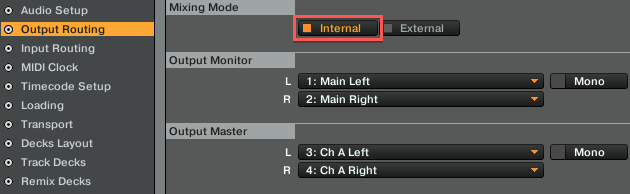
- Set the Mixing Mode to Internal in the Output Routing tab of the TRAKTOR Preferences.
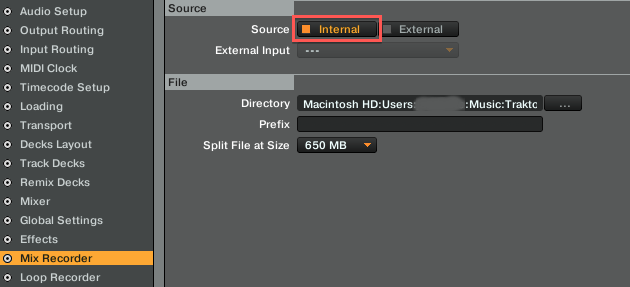
- In the Mix Recorder Preferences, set the Source to Internal.
- Open the Audio Recorder Panel in TRAKTOR's Global Section. It's at the same place in the user interface as the second FX Panel. Clicking on the tape symbol makes the Audio Recorder visible (see screenshot).
Note: If you can't see the Global Section, select a different TRAKTOR layout, for example Extended.
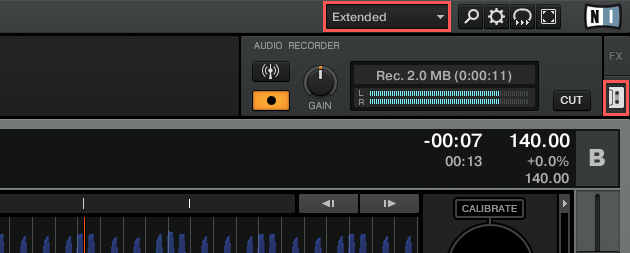
- You can now start your recording by hitting the Record button.
The recorded files appear in the Audio Recordings node of the TRAKTOR Browser. The recording path on your hard drive can be set here: Preferences > Mix Recorder > File > Directory. By default, it's set to:
- Mac: Macintosh HD > Users > *Your User Name* > Music > Traktor > Recordings
- Win: C: > Users > *Your User Name* > My Documents > MyMusic > Traktor > Recordings
Was this article helpful?
That’s Great!
Thank you for your feedback
Sorry! We couldn't be helpful
Thank you for your feedback
Feedback sent
We appreciate your effort and will try to fix the article