This guide explains how to move a Kontakt library to a new location on your computer.
The steps vary slightly depending on your version of Kontakt, so follow the section that applies to your setup.
TABLE OF CONTENTS
Kontakt 7 / 8
- Close Kontakt, your DAW, and all other Audio / MIDI-related software.
- Move the Library folder to its new location.
- Start Native Access and go to Library > Installed > Kontakt.
- Find the Library and click Repair.
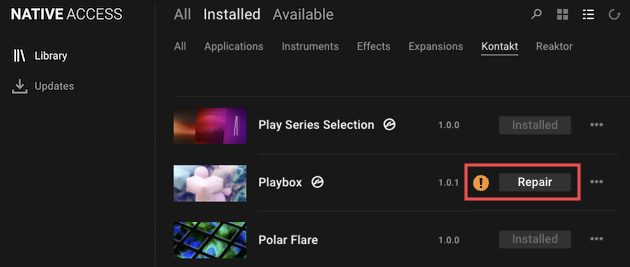
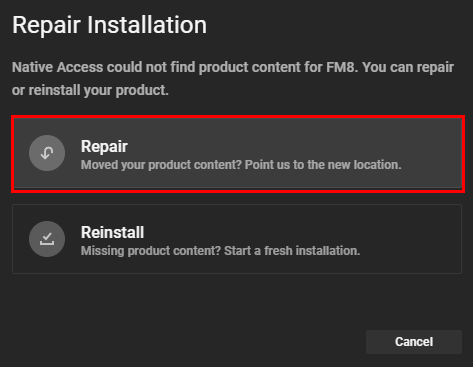
- In the Repair Installation window, click Repair.
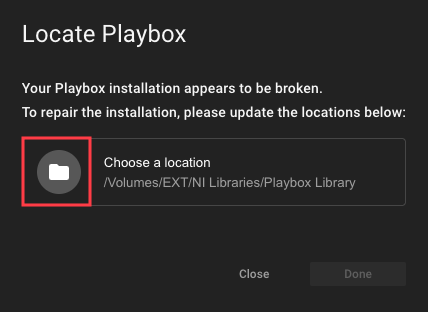
- The Locate window displays the product's last known location. Click the folder symbol.
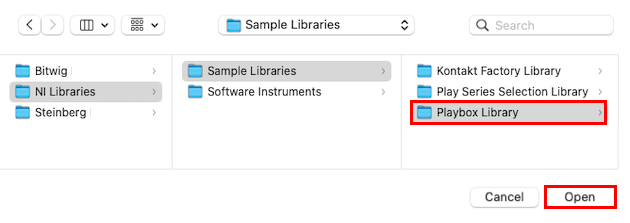
- Browse to the new location and select the Library folder.
- The Locate window will indicate that the library folder was successfully relocated.
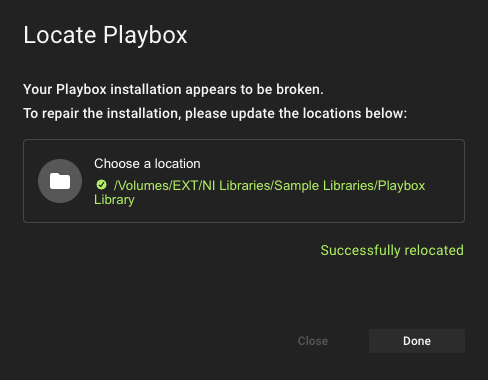
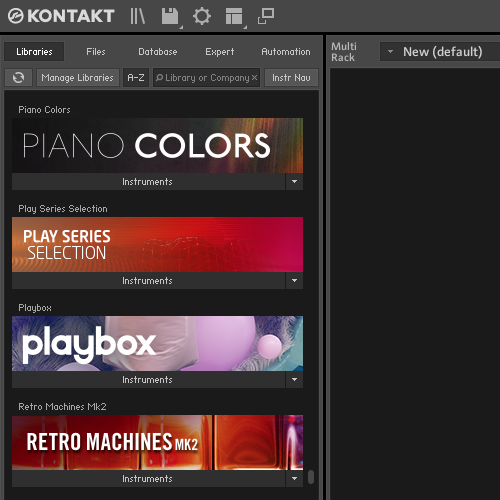
- Click Done to close the Locate window and your Kontakt library will now display correctly in the browser.
Kontakt 6 and Earlier
- Move the Library to the desired location.
- Start Kontakt. You will see the following error message within the Libraries tab in the Kontakt Browser:
Library content not found. Click Locate to set the content.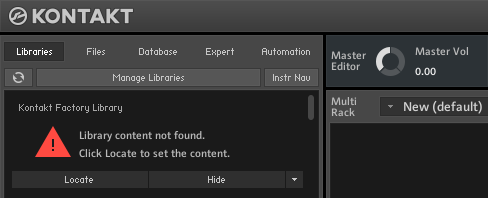
- Click the Locate button.
- In the new window, click Browse for folder:
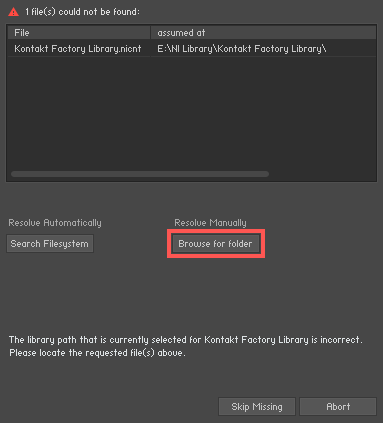
- Browse to the new location of the Kontakt Library.
- Select your Kontakt Library's folder and click Choose / OK.
Now the Library is available in the Kontakt Browser again.
Was this article helpful?
That’s Great!
Thank you for your feedback
Sorry! We couldn't be helpful
Thank you for your feedback
Feedback sent
We appreciate your effort and will try to fix the article