TABLE OF CONTENTS
- Third-party Kontakt Libraries purchased from the NI Webshop
- Third-party Kontakt Libraries with a Serial Number
- Third-party Kontakt libraries without a serial number
Third-party Kontakt Libraries purchased from the NI Webshop
These Libraries can be installed directly from Native Access:
- Start Native Access.
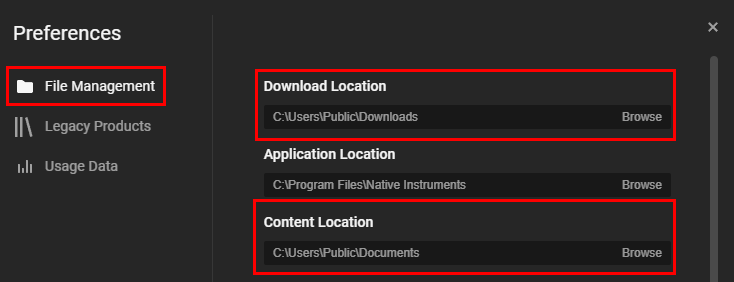
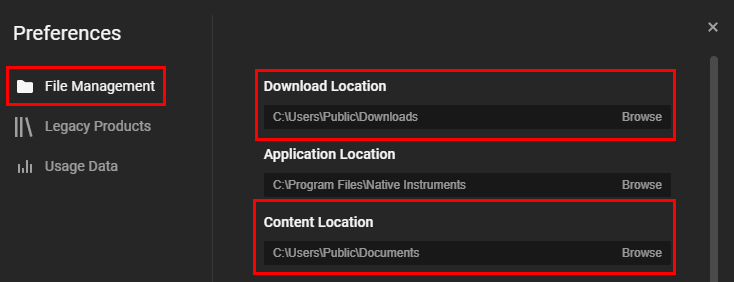
- Open the Preferences and set the Download and Content location for your library:
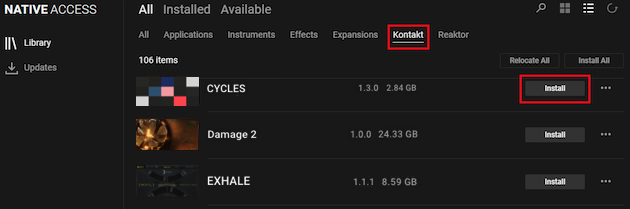
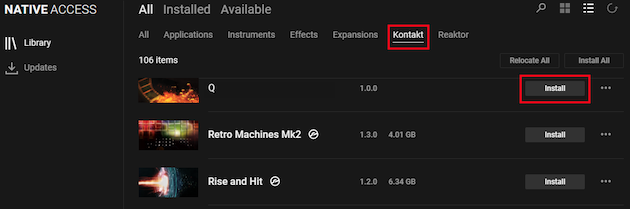
- Find your library in the Kontakt tab and click Install.
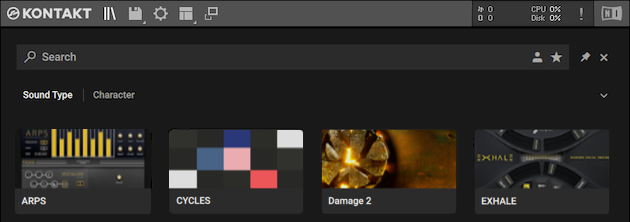
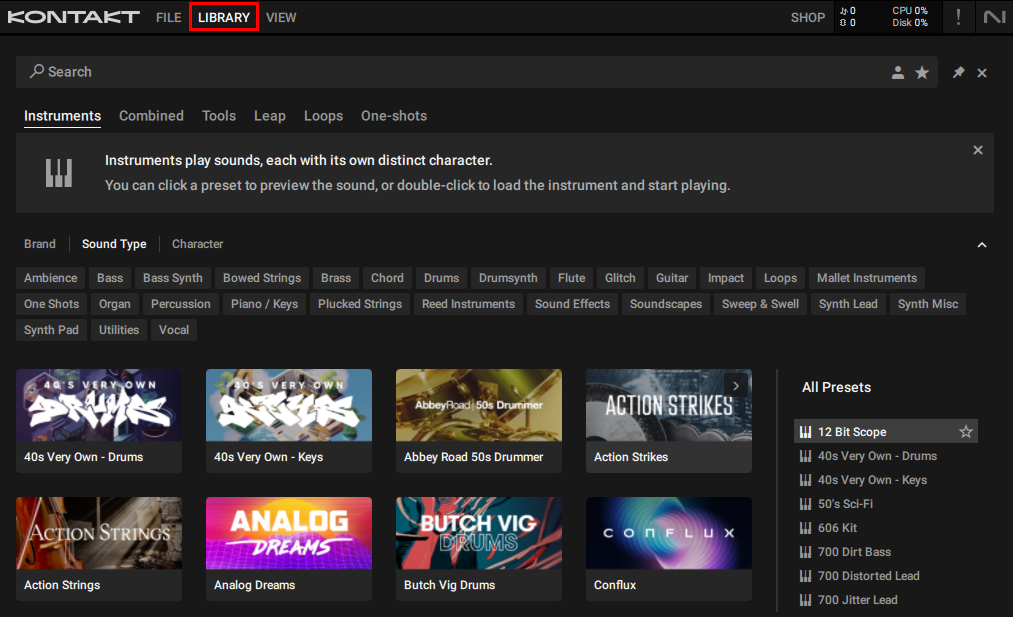
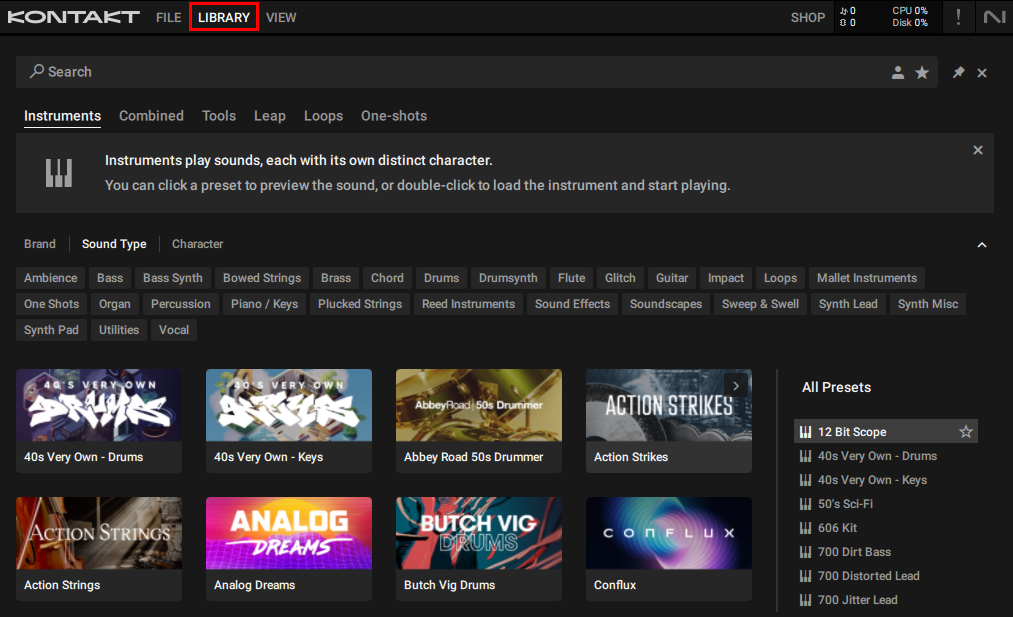
- After you have installed / located your library, you can find it in Kontakt's LIBRARY browser:
Third-party Kontakt Libraries with a Serial Number
Third-party libraries that come with a serial number must first be activated in Native Access.
- Start Native Access.
- Open the Preferences and set the Download and Content location for your library:
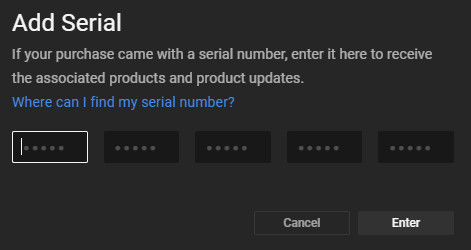
- In the bottom left of Native Access, click Add Serial and enter your serial number:
- Open the Kontakt tab and find your library. If the entry shows an Install button you can directly install it:
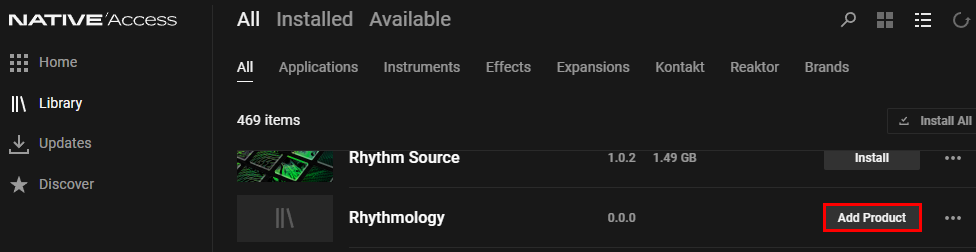
- If the entry shows an Add Product button instead, you have to download the library from the manufacturer first. After the download you can click the Add product button in Native Access and navigate to the library folder to select it. If you have any questions about downloading the library, please contact the library manufacturer's support.
If you get the error message "That path is invalid", please read this article. - After you have installed / located your library, you can find it in Kontakt's LIBRARY browser:
Third-party Kontakt libraries without a serial number
Kontakt libraries without a serial number that do not need to be activated via Native Access can only be used in the full version of Kontakt .
After downloading the library from the manufacturer you can load it via Kontakt’s Files Browser: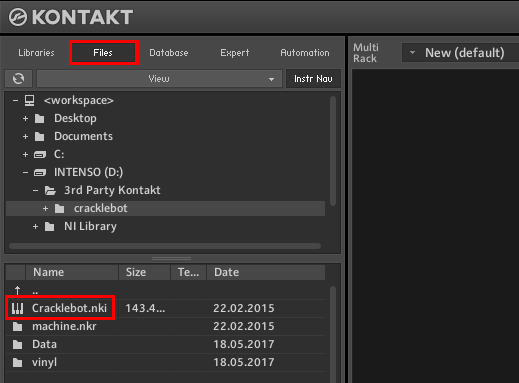
You can organize and load these Libraries in a more convenient way using Kontakt’s Quick-Load Catalog. Here’s a video tutorial:
In Kontakt 7 / 8 you can add the Libraries to the Library Browser. You can find the instructions in this article.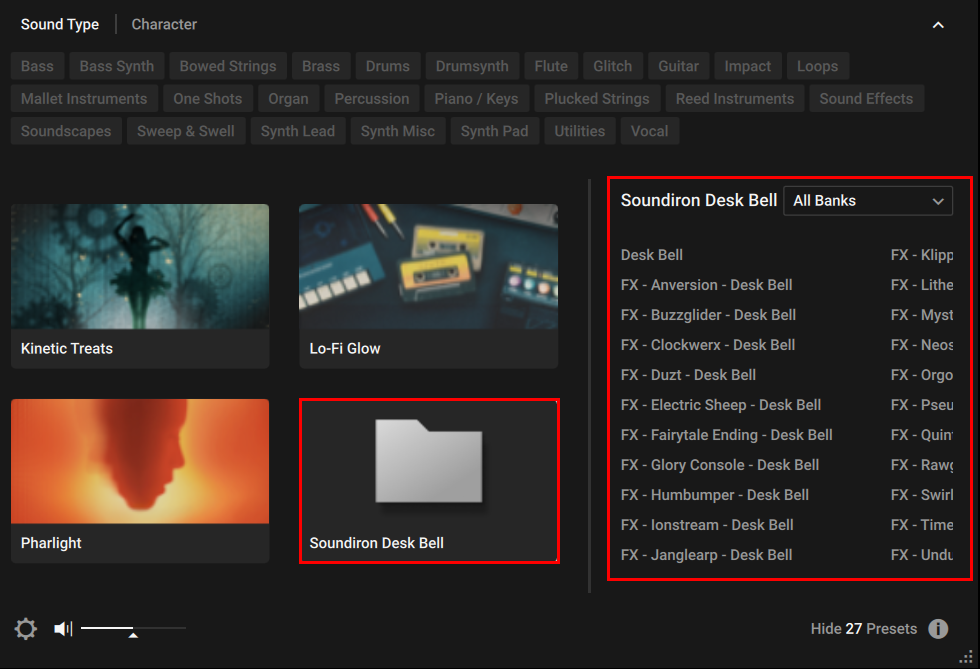
Was this article helpful?
That’s Great!
Thank you for your feedback
Sorry! We couldn't be helpful
Thank you for your feedback
Feedback sent
We appreciate your effort and will try to fix the article