In Studio One, Native Instruments products are loaded as a VST plug-ins on Windows computers. On Mac computers, they can be loaded as either as VST or AU plug-ins. To enable this, you must ensure that Studio One scans the folders where your NI plug-ins are located. This article describes this procedure for both Mac and Window systems.
TABLE OF CONTENTS
Note: Since version 4, Studio One is no longer compatible with 32-bit plug-ins. This article refers to the 64-bit VST plug-ins only.
Mac
On a Mac computer, all AU and VST files are installed to default locations, so you do not need to define specific plug-in folders during the installation of your NI products.
Studio One will automatically scan these locations at each startup and recognize any new plug-ins that have been installed.
PC
Installing the NI VST Plug-ins
VST3 plug-ins are installed to C > Program Files > Common Files > vst3 by default. This location does not have to be added to the plug-in window in Studio One. Studio One will scan that folder automatically.
On a Windows computer, the VST plug-ins can be installed to any location on your hard drive. We strongly recommend to use the default installation path offered by Native Access:
- C: > Program Files > Native Instruments > VSTPlugins 64 bit
If you want to install the VST plug-ins to a different location, you can set the path in Native Access before the installation as explained in this article.
Adding the NI VST folder to Studio One
- Start Studio One and navigate to Studio One > Options:
- Under Locations, click the VST Plug-Ins tab:
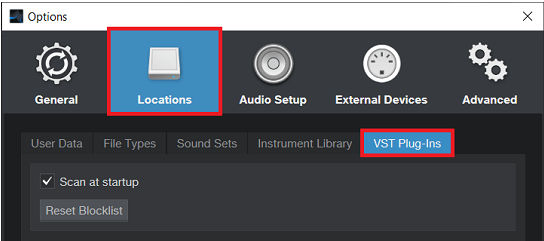
- Click the Add button to add your VST 64 location and click Apply to confirm:
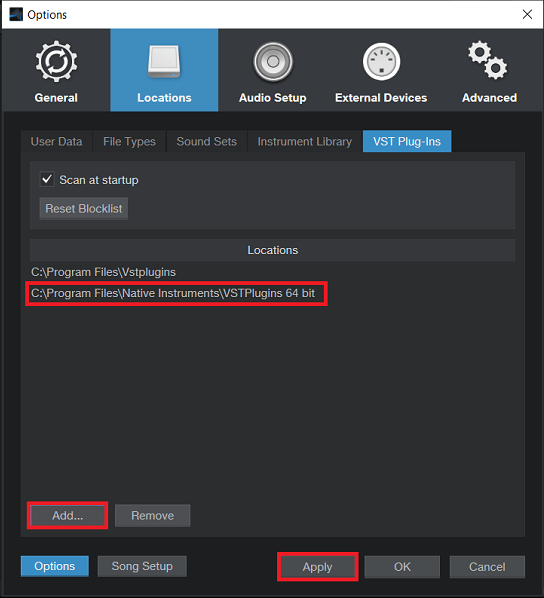
Your plug-ins can now be loaded in Studio One.
Was this article helpful?
That’s Great!
Thank you for your feedback
Sorry! We couldn't be helpful
Thank you for your feedback
Feedback sent
We appreciate your effort and will try to fix the article