How to Route a Reaktor Sequencer Ensemble to a Plug-in in Ableton Live
This article explains how to route MIDI from a Reaktor sequencer Ensemble to an external plug-in (eg. Massive, FM8, etc.) within Ableton Live. We will use the Spiral sequencer Ensemble as an example to walk you through the procedure.
- Load Reaktor as a VST plug-in in Ableton Live.
Note: On macOS, it is important to load Reaktor as a VST plug-in and not an Audio Unit (AU), since the AU format does not support MIDI output. Please read this article to learn how to insert a NI plug-in in Ableton Live.
- Find the Spiral Ensemble in the Reaktor Browser. It is located in the Player section of the Browser, under:
Reaktor Factory Library > Sequencers > Spiral.ens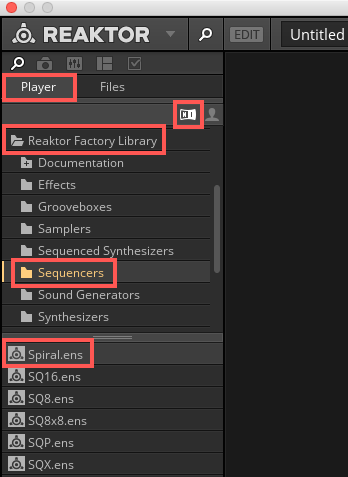
- Double-click "Spiral.ens" or drag it to the main working area in Reaktor to load the Ensemble.
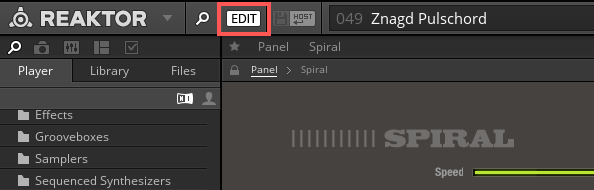
- Enter Edit mode by pressing the EDIT button.
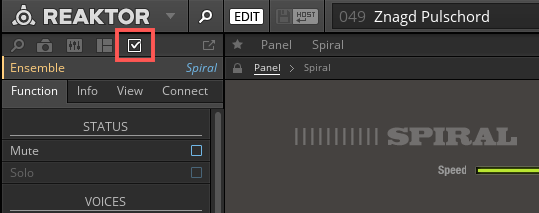
- Select the Properties tab on the Side Pane of Reaktor.
- In the Ensemble's Properties, select the Connect tab.
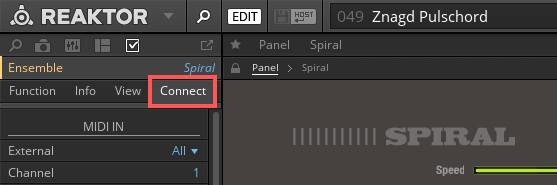
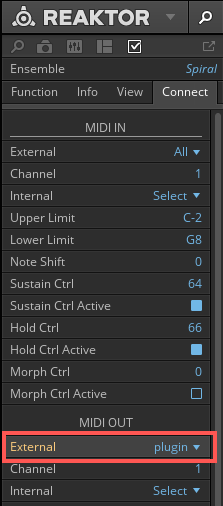
- In the MIDI OUT section, click the External drop-down menu and select plugin.
- In Ableton Live create a new MIDI Track and load a plug-in instrument of your choice.
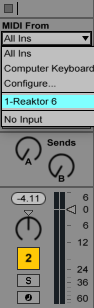
- In the plug-in's Ableton Live track select Reaktor as MIDI From.
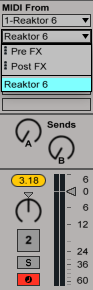
- Next, select Reaktor as the Input Channel.
Note: If you do not see a Reaktor entry under Input Channel, you have probably loaded the Audio Unit version of the Reaktor plug-in. In this case, you will have to re-load a VST version of the plug-in to be able to send MIDI from Reaktor (see above, point 1).
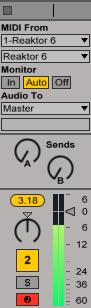
- Press play in Ableton Live. Spiral will start sending MIDI notes to your plug-in, which will generate audio.
Was this article helpful?
That’s Great!
Thank you for your feedback
Sorry! We couldn't be helpful
Thank you for your feedback
Feedback sent
We appreciate your effort and will try to fix the article