In the unlikely event that you cannot find your Native Instruments plug-ins in Cubase, they were possibly blacklisted. NI plug-ins may become blacklisted if you move VST2 plug-ins into the VST3 plug-in folder.
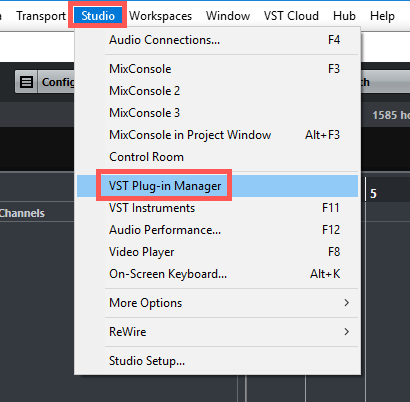
You can re-enable those plug-ins in the VST Plug-in Manager, located in the following sub-menu at the top of the window:
- Studio > VST Plug-in Manager
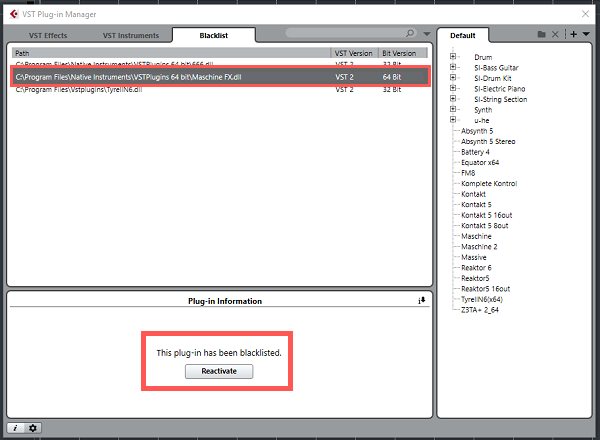
Click on the Blacklist tab. This is where all blacklisted plug-ins are located. 32-bit plug-ins cannot be re-enabled since they are not supported by Cubase 9. You can, however, reactivate 64-bit plug-ins if necessary by selecting the plug-in and clicking Reactivate.
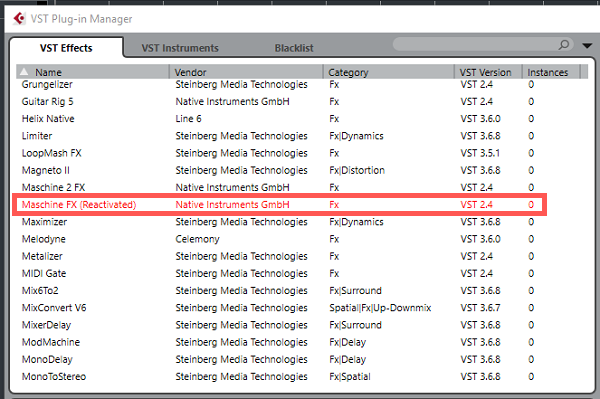
A re-enabled plug-in will then be displayed in the appropriate list (VST Effects or VST Instruments) in the VST Plug-in Manager. You will easily recognize it since re-enabled plug-ins show up in red.
If a particular plug-in is nowhere to be found in the VST Plug-in Manager and is not blacklisted either, you may need to add its destination path as explained below:
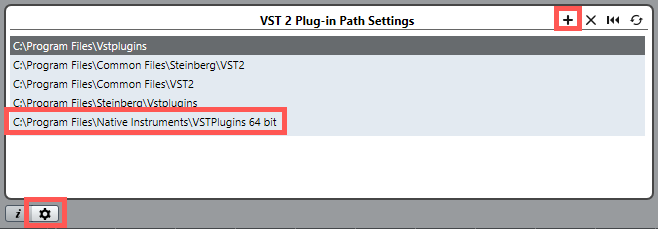
- Click on the gear icon at the bottom left of the VST Plug-in Manager window to open the Plug-in Path Settings.
- Click on the + sign on the top right of the bottom half window, as seen in the picture below.
- Add the destination path where your NI plug-ins have been installed in.
By default, the path is as follows:
- C: > Program Files > Native Instruments > VSTPlugins 64 bit
Was this article helpful?
That’s Great!
Thank you for your feedback
Sorry! We couldn't be helpful
Thank you for your feedback
Feedback sent
We appreciate your effort and will try to fix the article