Symptom
Upon launching Native Access, you receive the following error message:
Permission denied
Native Access requires your permission to run.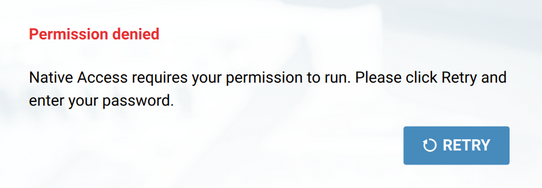
Causes
- You are using the wrong password for allowing the installation of a NI helper tool.
- The NI helper tool could not be installed or updated.
Solutions
When launching Native Access the following prompt may appear. Ensure to enter your macOS username and password (NOT your NI username and password):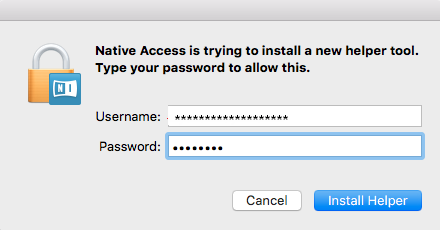
If you still receive the permission denied error, please proceed as follows:
1. Open Finder and delete the following files:
Note: there may not be all files present on your system.
- MacHD > Library > Launchdaemons > com.native-instruments.Installer.HelperTool.plist
- MacHD > Library > Launchdaemons > com.native-instruments.NativeAccess.Helper2.plist
- MacHD > Library > Privilegedhelpertools > com.native-instruments.Installer.HelperTool
- MacHD > Library > Privilegedhelpertools > com.native-instruments.NativeAccess.Helper2
- MacHD > Applications > Native Access.app
2. Empty the trash.
3. Delete the following file from the user library:
- MacHD > User > *Username* > Library > Preferences > com.native-instruments.Native Access.plist
Note: The User Library is a hidden folder on macOS. To access it, click 'Go' in the Finder menu bar and hold down the 'Alt' key. The Library entry will now appear in the menu.

4. Restart your computer.
5. Download Native Access from this page and install it.
6. Start Native Access. It should now start correctly.
If you still receive the permission denied error, please continue:
1. Close Native Access.
2. In Finder, go to MacHD > Applications > Utilities and open Terminal.
3. Copy the following command line, paste it into Terminal and hit enter:
sudo launchctl load -wF /Library/LaunchDaemons/com.native-instruments.NativeAccess.Helper2.plist
4. Enter your macOS password when prompted.
5. Start Native Access. It should now start correctly.
Was this article helpful?
That’s Great!
Thank you for your feedback
Sorry! We couldn't be helpful
Thank you for your feedback
Feedback sent
We appreciate your effort and will try to fix the article